AirPods switching between Mac and iPhone? Check the connection policy
If listening moves between your Mac and iPhone, check the AirPods switching preference before treating it as a microphone-selection problem. Apple provides automatic switching on supported AirPods and software combinations. A Mac input preference and the device currently playing through the earbuds are separate questions.
SoundBuddy is our product. Its Input Lock maintains a preferred Mac default microphone while the app is open. It does not set Apple's automatic-switching policy or reserve a headset's connection for one computer.
Identify what actually moved
- Media moves to another device: inspect the switching preference on that device.
- The Mac plays elsewhere: check the Mac's selected output, even if the earbuds appear connected.
- Listening works, but the wrong mic supplies your voice: inspect macOS input and the call app's own selection.
- Audio drops during a conversation: record which connection, output or app state changed.
Apple's switching guidance says sound should not switch automatically during a conversation. Treat an unexpected call interruption as something to investigate, not proof that normal media switching explains it. No AirPods hardware test was performed for this article.
Review the preference on the Mac first
Apple distinguishes automatic Mac switching in Sequoia and later from Sonoma's Connect confirmation. Check the instructions for your software version before treating a prompt or a transfer as unexpected.
Outside a real call, connect and wear your AirPods, then review their settings. Apple's current Mac instructions use System Settings > Bluetooth and the information control beside your AirPods. Open Audio & Routing if that option is displayed, then inspect Connect to This Mac.
If you want to stop automatic switching to that Mac, Apple documents When Last Connected to This Mac as the alternative. Note the original setting before changing it. This is a preference to compare, not a guarantee that every connection problem will disappear.
The location and availability of controls depend on your model and software. Use Apple's model-specific switching guide for your version rather than assuming every Bluetooth headset has these options. Do not reset or forget the device just to run this comparison.
Check the phone separately if needed
If the unwanted destination is the iPhone, inspect its own AirPods connection preference. Apple documents Connect to This iPhone and When Last Connected to This iPhone, with Audio & Routing as an extra step where shown.
Change one device's preference at a time so you can tell what changed. You can review Automatically again if you later want that behaviour. Start with an ordinary media comparison, then separately verify your intended call setup before relying on it for work.
Keep the Mac microphone decision separate
If the earbuds remain your listening output but you want another microphone, use the separate Mac input and Bluetooth output guide. A call app may save a named input independently of the system default.
SoundBuddy's preferred and fallback input controls address that Mac input choice. They do not promise to stop another device taking over playback, repair a radio connection or force an app to follow the default.
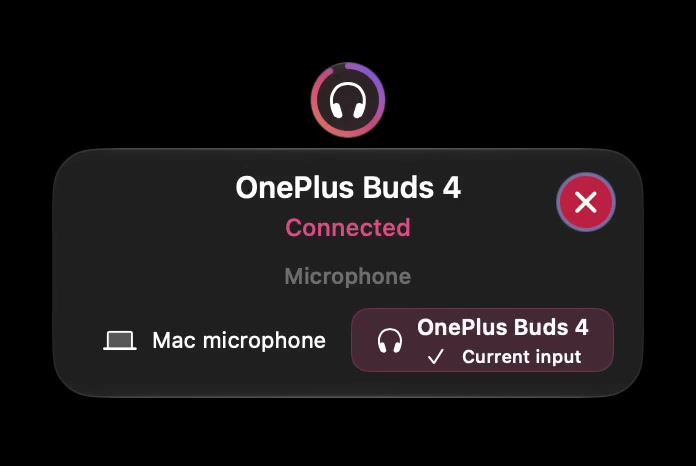
The capture illustrates the kind of label to read, not a model-support list. A connected status at one moment does not establish what happened during a later interruption. The paired, connected and selected guide explains those labels.
Keep a short switching record
Write down the AirPods model, Mac and phone software versions, each device's switching preference, the app in use and the listening destination before and after the event. Note whether it happened during media playback or a conversation. Avoid including private call content in a support report.
If the issue persists, restore a known working arrangement for the next call and use the model maker's current support route. The record helps distinguish an intended setting from a reproducible interruption without guessing that every disconnect has the same cause.
Next step: inspect one device's switching preference and compare it outside a call, keeping the microphone choice as a separate check.