Which display changed? Understand SoundBuddy brightness feedback
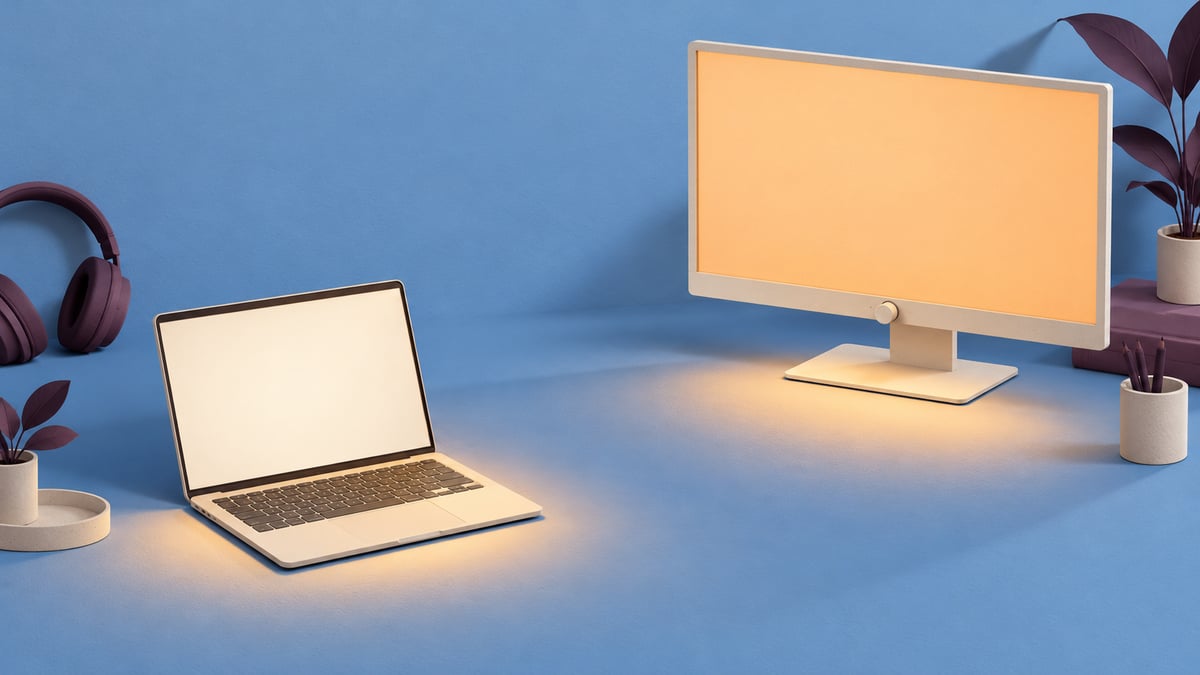
On a desk with a MacBook and an external monitor, start by identifying which screen's brightness you changed. A popup appearing near your work does not establish that it describes the monitor you are looking at.
SoundBuddy is our product. Its brightness feedback is available for supported built-in displays that report a usable reading. It is not an external-monitor brightness controller, a display calibration tool or a replacement for macOS display settings.
Separate the display from the popup
Use the display name and the control you actually changed as your reference. The popup's position on the desktop is a presentation choice, not a hardware-support certificate.
Three questions help:
- Which physical screen changed? The Mac's built-in panel and an external monitor are separate displays even when they show similar content.
- Which control changed it? A Mac brightness key, an available Displays setting and a monitor's physical menu may act through different routes.
- Can SoundBuddy read that display? Its current brightness-feedback scope is supported built-in displays. A working external brightness control in another tool does not expand that scope.
If your Mac is used with only an external display, do not assume SoundBuddy will obtain a brightness reading for it. An unavailable reading is not zero brightness and does not prove the monitor is disconnected.
Check the control macOS or the monitor provides
Apple's brightness guide describes manual adjustment and automatic brightness on Macs with an ambient light sensor. If a built-in display changes without a brightness keypress, inspect whether Automatically adjust brightness is enabled before assuming an audio utility caused it. You do not have to disable that preference to inspect it.
For an external monitor, use the controls available for that specific model and connection. Apple's external-display troubleshooting guide notes that a non-Apple display may need its own built-in controls and menu for brightness. Some external setups offer Mac-side controls; this guide does not claim all external brightness control is impossible.
A public external-monitor discussion describes a reader finding a Mac brightness slider available for their display, while other replies report different experiences. These are individual observations, not a verified compatibility list or proof of a particular macOS update's behaviour. Check your own model instead of copying another person's settings.
Read SoundBuddy's actual preference
Open SoundBuddy > Settings > Action HUD. Show display brightness changes controls companion feedback for available brightness changes. Show current brightness requests a current available reading. Neither is a slider that writes a new monitor brightness.
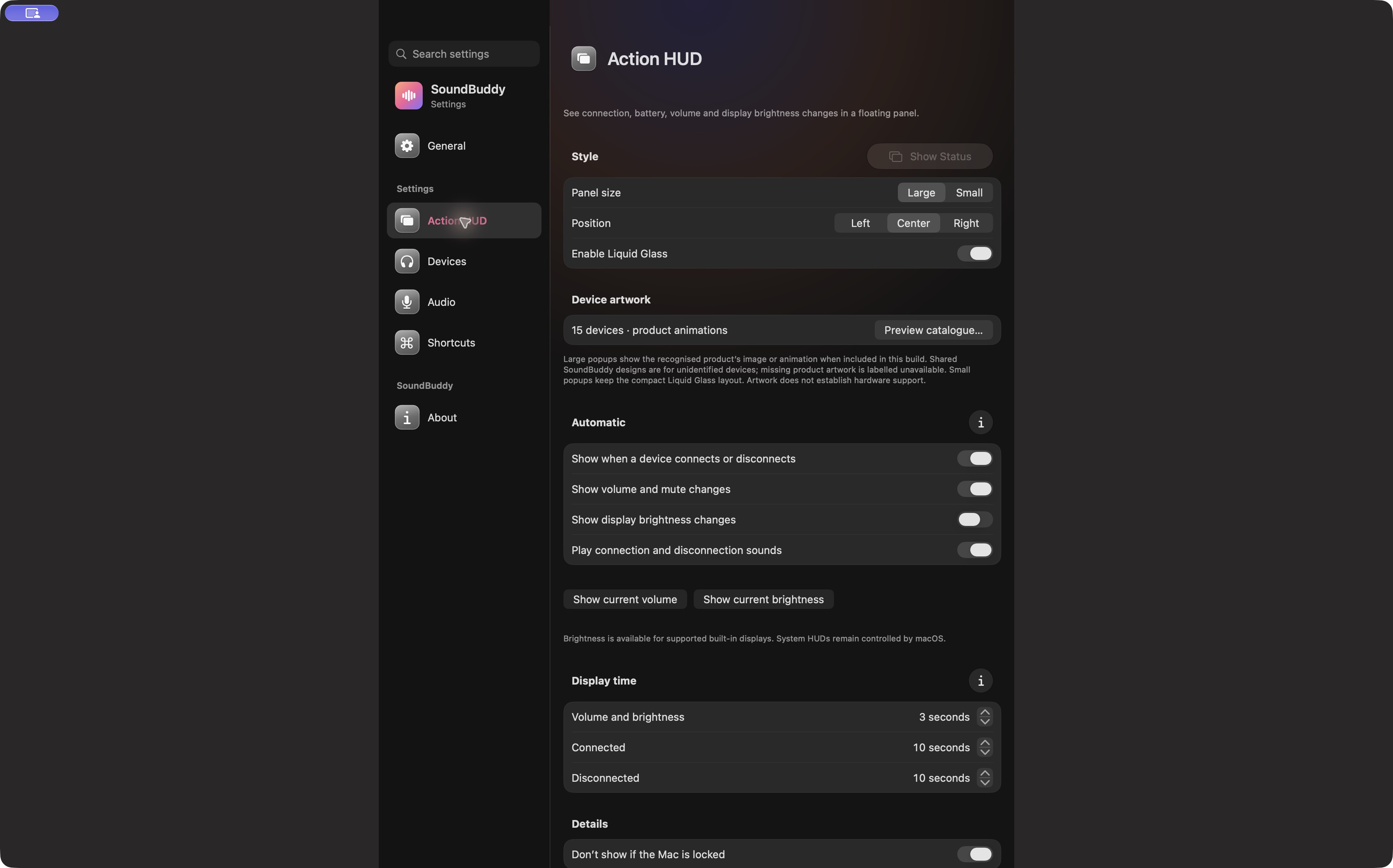
Open the full-size app capture to inspect the labels and scope note.
When a usable brightness reading is absent, the manual action can report that the display does not report brightness to SoundBuddy. Treat that as a reading limitation, not an instruction to install a driver, reset the Mac or change a connection that already works.
The automatic preference concerns observed changes to an available display reading. The presence of a switch is not proof that every connected display is supported. System HUDs remain controlled by macOS.
Make a display-specific observation
Outside a presentation or recording, choose one screen and keep the other screen's setup steady.
- Note the display name, whether it is built in or external, and the adjustment control available to it.
- Inspect the relevant SoundBuddy preference and any existing message. Keep a missing reading labelled unavailable.
- If you want to compare, make one small brightness adjustment through that display's normal control. Observe the physical screen separately from any popup.
- Record which screen changed and which display name or message appeared. Restore your preferred level afterward if needed.
Do not increase brightness repeatedly just to trigger feedback. A relative setting is not a calibrated luminance measurement, and equal percentages on different screens do not establish equal apparent brightness. No brightness comparison or hardware acceptance test was performed for this guide.
Choose the next step by the actual problem
If the external screen is black or undetected, follow Apple's external-display troubleshooting separately. A missing SoundBuddy popup cannot diagnose a cable, display-count limit or video signal.
If the popup appears but is difficult to read, use the duration guide or motion and transparency guide. Those preferences change feedback presentation; they do not add external-monitor support.
For a similar distinction in audio, see volume feedback versus output control.
Next step: identify one physical display and its actual adjustment control before using a popup as evidence about what changed.