Too many typing sounds? Choose press, release and extra cues
If you like a sound pack but want fewer cues, inspect which events produce feedback before changing the pack or lowering the whole Mac's volume. SoundBuddy separates ordinary key presses from optional key-release, modifier-key, scroll and typewriter-ding sounds.
SoundBuddy is our product. These controls shape its added audio. They do not change the keyboard's physical sound, rewrite shortcuts or repair repeated characters in a document. Start with the event that bothers you and keep the rest of your setup steady.
Match the extra sound to a control
Open SoundBuddy > Settings > Audio > Keyboard Sounds > Sound. The Sound Details section contains the relevant controls.
| What you want to compare | Control to inspect | Important distinction |
|---|---|---|
| Feedback when an ordinary key comes back up | Key-release sounds | Separate from the sound when the key goes down |
| Feedback when a modifier is pressed | Modifier-key sounds | Turning release sounds off does not turn this choice off |
| Added feedback while scrolling | Scroll sounds | Separate from letter-key feedback and physical mouse noise |
| An extra bell on a chosen typing event | Typewriter ding | Choose Off, Return / Enter or Space as shown in the menu |
The ding can be an additional cue on the selected press event. It does not mean a second character was entered. Likewise, a key-down cue followed by a key-up cue is an audio choice, not evidence of a duplicate keystroke.
Read the captured state without treating it as a preset
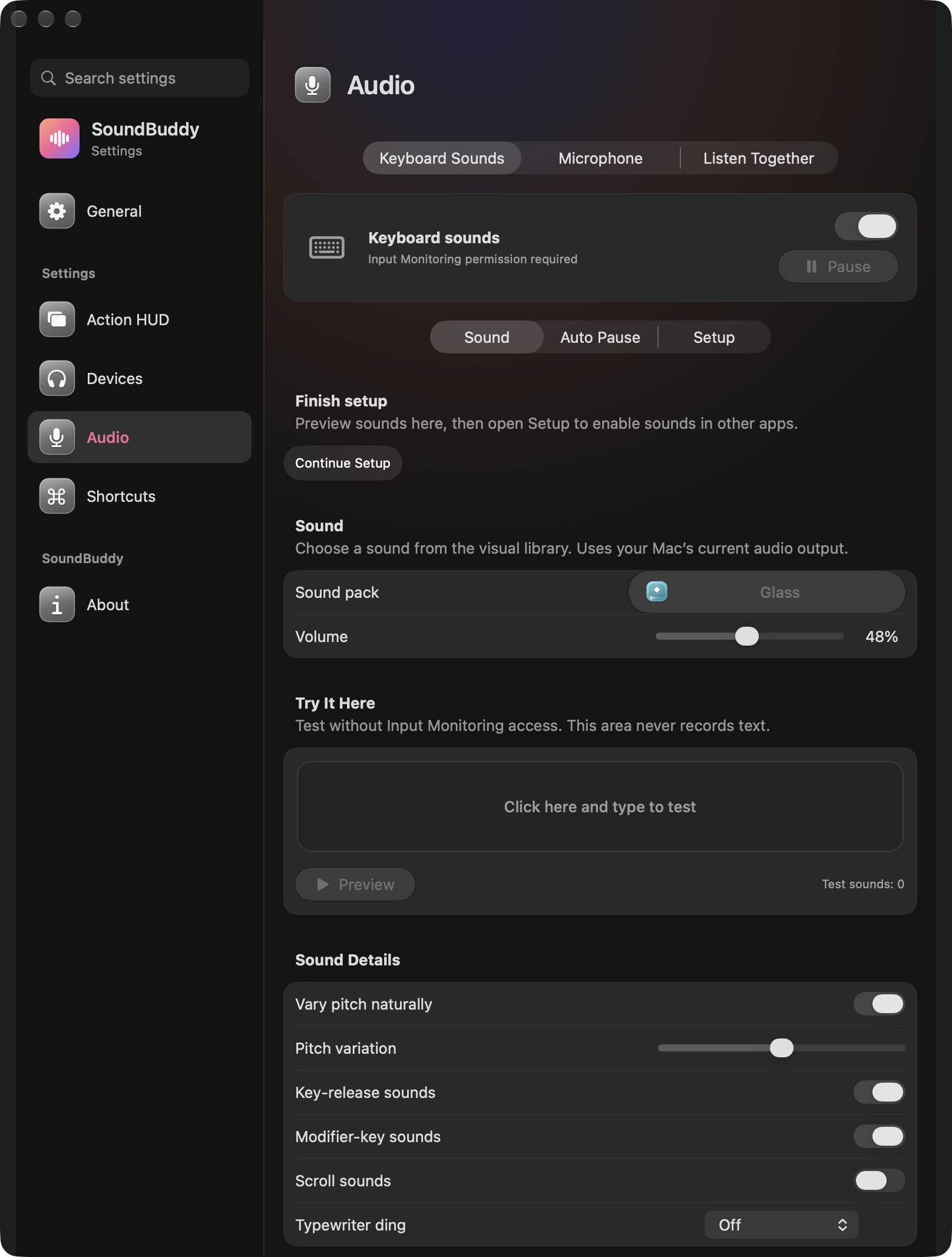
The captured combination is one state. Your installed copy may have different saved preferences. Read the switches rather than treating a screenshot or a default as proof of your setup.
Compare one event at a time
Use a quiet moment and a few harmless test actions. Keep the sound pack, volume and output device unchanged while comparing a single control.
- Note the present setting so you can restore it.
- For a release comparison, press and release one ordinary key slowly. Compare with Key-release sounds off, then restore your preferred choice.
- For a modifier comparison, use a modifier on its own rather than running a real shortcut. Inspect Modifier-key sounds separately from release sounds.
- For scroll feedback, use a plain, non-sensitive window and compare only Scroll sounds. A sound from the physical wheel or another app is a separate possibility.
- For the ding, check the menu choice before testing the selected event. Set it to Off if you do not want that extra cue.
The native local test area can help compare keyboard feedback without completing global setup. Use the local preview guide for its scope. Tab and Escape have navigation roles there, so use an ordinary letter for the press/release comparison. No playback test was performed for this article.
For the scroll comparison, use an already working global setup. The local pad is a keyboard test, not a demonstration of scroll capture across apps. You can leave the scroll preference unchanged until you choose to complete global setup.
Keep loudness and event count separate
If the number of cues is right but they are too prominent, use the separate typing-sound volume guide. Reducing volume changes loudness; disabling a cue changes which events add audio. Comparing both at once makes it harder to tell which choice helped.
If the sound is unwanted during a presentation, use the recording audio-path guide. An event preference is not a complete check of what a microphone or capture app receives.
If characters actually repeat, investigate typing separately
Look at what appears in the document, not just what you hear. Apple's key-repeat guidance explains the Mac's Key repeat rate and Delay until repeat settings for held keys. Those are different from SoundBuddy's sound controls.
Unexpected characters from a brief press may need a different keyboard or app investigation. This guide does not diagnose that behaviour or suggest that an audio switch repairs it.
Next step: choose one extra cue, compare only its control, and keep the setting that suits your work.