Find a SoundBuddy setting without resetting the app

If you remember what a control does but not where it lives, start with SoundBuddy's settings search. Use a short feature term, open the matching page and inspect the actual control before changing it. An empty result list is not a reason to reset preferences.
SoundBuddy is our product. This guide explains its settings navigation, including what search results do and what they do not establish about a feature's availability or state.
Search inside the Settings window
Open SoundBuddy > Settings and find Search settings above the sidebar destinations. With that window active, Command-F focuses the search field. This is a shortcut for the app's Settings window, not a global command that opens it from every other app.
- Enter a short term such as microphone, duration or motion.
- Read the result title and its destination name.
- Choose the result that matches your task. If several appear, select the specific title rather than assuming the first is the one you intended.
- On the destination page, choose an internal section if necessary, then read the control's current state.
- Clear the search with its clear button when you want the normal sidebar navigation again.
Pressing Return can open the first matching result. Selecting a result is navigation; it does not turn on the feature for you.
Use a feature word before a long problem sentence
Useful starting points include:
- Microphone choice or Input Lock: search microphone, open Microphone under Audio, then choose the Microphone section if another audio section is showing.
- Popup display time: search duration and open Popup duration under Action HUD.
- Less decorative movement: search motion and open Reduce motion under General.
- Global typing setup: search permission and inspect Keyboard sound setup under Audio, then the relevant Keyboard Sounds controls.
Search matches indexed setting titles and keywords. Several words narrow the matches, so a long description can miss a useful result. If your first query fails, remove extra words or use the feature's shorter name. Capitalisation does not need to match the label.
An Input Lock question, for example, is a reason to try microphone rather than repeatedly adding more words to a query. Once you find the right page, use the preferred/fallback guide for the configuration itself.
Expect the owning page, then inspect the section
A matching result can take you to Audio, General or another owning page without placing your cursor on the exact switch. Audio contains several sections. If it opens to Keyboard Sounds while you are looking for a microphone control, choose Microphone within that page.
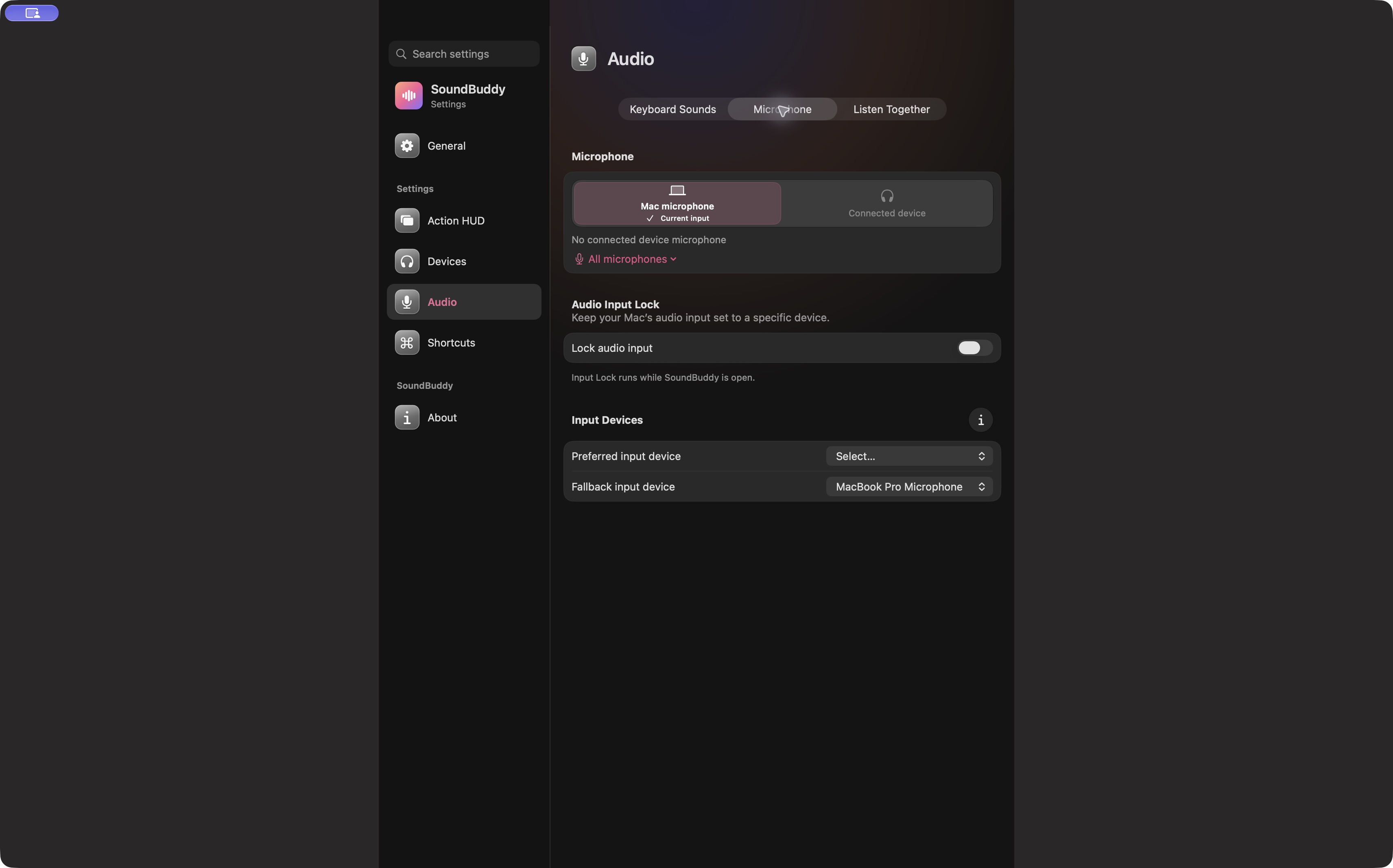
Open the full-size app capture to inspect the sidebar and section labels.
The destination name is useful when several results mention similar ideas. Read the title too: a microphone-related Auto Pause result and a microphone-device choice answer different questions. Opening a page alone does not prove the desired preference is enabled or that a hardware action succeeded.
When there are no results
No settings found means the current query did not match the available index. Clear it and try a short related term. You can also navigate directly through General, Action HUD, Devices, Audio, Shortcuts or About, using the labels present in your installed version.
Do not treat the result list as a complete catalogue of every control or a hardware-support list. A term may differ from the visible label, and a known page may contain controls that are not individually named in search.
If a control still seems absent, record your app version, the query and the page you inspected. Use About and platform fit for version context. Resetting the app would discard useful preference evidence before you have established what is missing.
Use System Settings for the Mac's own controls
SoundBuddy's search is separate from macOS System Settings. Mac permissions, system input/output choices and OS accessibility preferences have their own locations. Apple's System Settings search guide explains finding those options with a word or phrase.
Finding a permission-related SoundBuddy page does not grant the Mac permission. For that workflow, use the Input Monitoring guide.
No search query, permission or preference was changed for this article. The actual capture shows navigation context, not a measured search-speed result.
Next step: search one short feature term, read its destination, and verify the actual control before changing a preference.