Is SoundBuddy suitable for your Mac? Check these requirements first
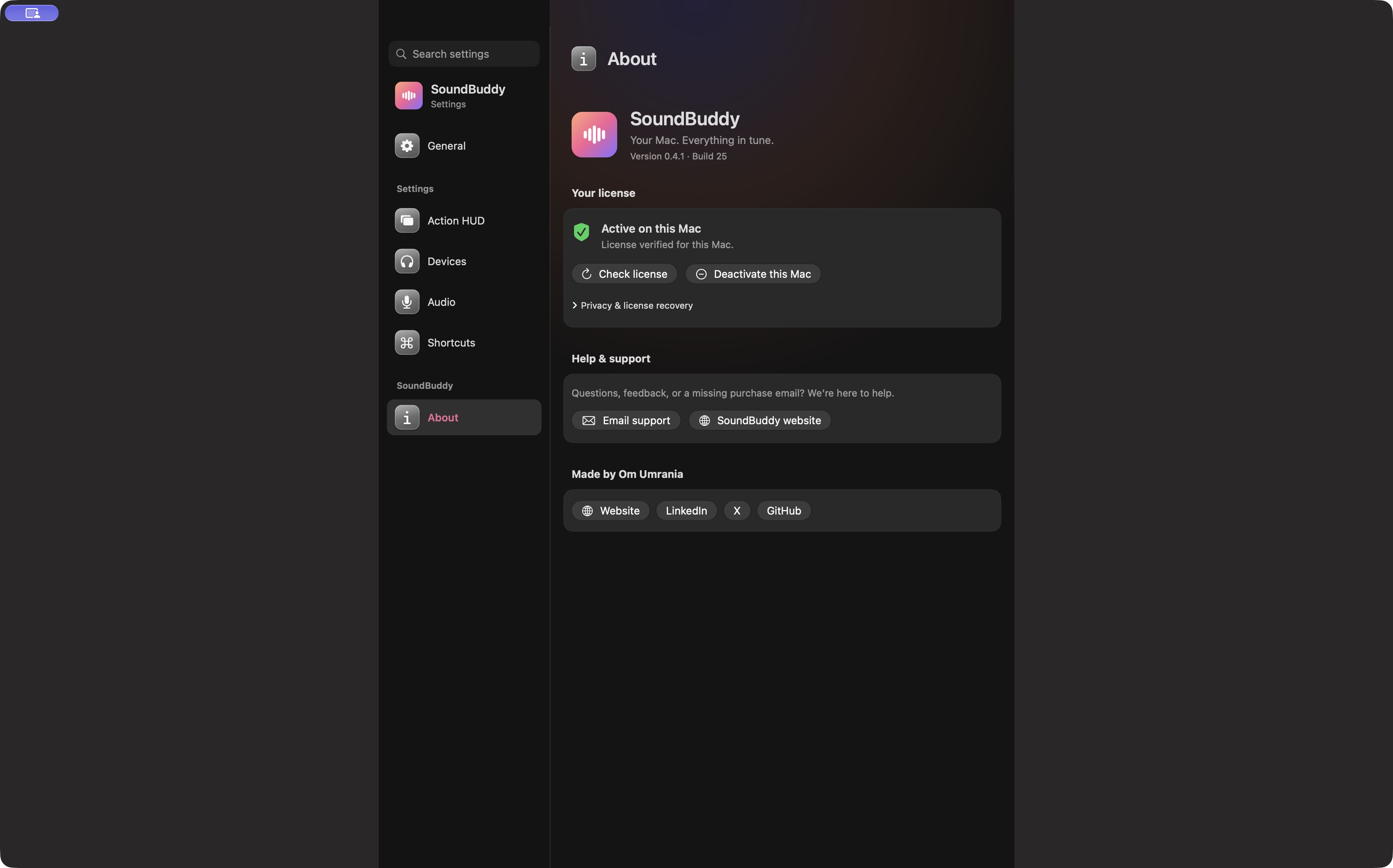
Check the Mac, the installer and the feature you need before buying SoundBuddy. The current direct-download edition targets Apple silicon Macs running macOS 14 or later. A supported Mac is the first fit check; it does not guarantee that every headset exposes every kind of information.
SoundBuddy is our product. This checklist uses its current installation guide and a real app capture, with hardware-dependent limits kept visible.
Check the platform
- Open About This Mac and identify the chip and macOS version.
- Compare them with the current SoundBuddy installation guide.
- If the Mac is Intel-based, do not assume this Apple silicon installer is suitable.
- If the operating system is older than the stated minimum, stop and check suitability before purchasing.
Apple's identification guide explains that an Apple silicon Mac lists a Chip entry. This article does not recommend an operating-system upgrade without considering the rest of your software and hardware.
Match the feature to available evidence
| What you need | What to check before relying on it |
|---|---|
| Default microphone choice | Available inputs and the call app's own selector |
| Preferred/fallback input behaviour | Input Lock setup, device availability and a safe transition test |
| Headset battery percentage | Evidence for your exact model and Mac setup |
| Typing sounds across apps | Input Monitoring setup and the selected pause conditions |
| A supported installer | The current guide and the installer issued for your purchase |
Use the battery fit checklist if battery information is your main reason to buy. A device picture or a connection result is not a substitute for a verified reading.
Understand installation and licence checks
The current guide identifies the direct installer as Developer ID signed and notarised. Confirm the normal macOS downloaded-app prompt. If macOS reports malware, damage or an unverifiable developer, stop and contact support; do not disable protections to force installation.
Activation needs internet access, and the paid edition performs online checks at launch and periodically while running. The current terms allow one Mac at a time. Read the current installation and licence instructions rather than assume offline access or an unlimited-device entitlement.
Independent clean-Mac installation remains unverified in the guide. Signing, notarisation, a successful installation on the maker's Mac and physical acceptance on a fresh Mac are different pieces of evidence.
Choose your first useful action
For microphone choice, use the pre-call check. For keyboard audio, start with the local/global setup distinction. You can also decide that the built-in Mac controls meet your needs; that is a valid fit result.
Next step: compare your Mac and required feature with the current guide before choosing the installer or buying for a specific workflow.