Guitar effects do not change what you hear? Inspect the monitoring path

If an amp simulator changes on screen but your guitar still sounds dry in the headphones, identify which signal you are listening to before replacing the effect or raising the gain. An interface can send its input to your headphones separately from the recording application's processed output.
Hearing yourself does not establish which path produced the sound. The useful first question is whether you intend to hear the clean input or the software's live processing.
Separate direct input from software playback
Focusrite's direct-monitoring explanation describes sending an interface input straight to headphone or line outputs while also sending the input to the recording software. Monitoring and recording can therefore happen through different paths.
That distinction matters when judging an effect: a plug-in in the recording app needs to be in the path you are actually monitoring. A clean direct-input feed is not evidence that the plug-in has failed.
If your goal is a clean input alongside a backing track, direct monitoring may be intentional. If your goal is hearing the amp simulator while playing, inspect the application's processed return and the mix feeding your headphones. Use the documentation for your exact interface and generation; not every model has the same physical button or mixer.
Inspect the mix feeding the actual headphones
For a concrete example, the Scarlett 4i4 4th Gen mixer guide distinguishes physical input channels from playback channels coming from the computer. Mixes can be sent to physical outputs, including a headphone destination.
The guide also says its mix faders affect that listening mix, not the sources being recorded. Do not treat a headphone-mix adjustment as an input-gain adjustment or copy a different model's routing layout.
Outside a production take:
- Note the interface model and generation, recording app, selected track and physical headphone output.
- Write down whether you want clean input or live software effects.
- Inspect which direct-input and software-playback sources feed that headphone destination.
- Follow the model's documented monitoring controls to isolate the path you intend to hear. Keep the same guitar, input level and effect choice during the comparison.
- Note whether the heard result follows the software effect. Restore any earlier mix choices you want to retain afterward.
Avoid changing recording gain, plug-in presets, every output and the whole mixer at once. If you cannot identify the mix feeding the headphones, record that uncertainty before overwriting a routing preset.
If the sound doubles, check for two monitoring paths
Focusrite's echo guidance describes hearing a direct input plus a delayed version returned by the recording app. The combination can sound doubled or phasey.
For a direct-monitoring workflow, it describes disabling the duplicate software input monitoring or muting the relevant recording-app input channels. Follow your application's instructions and distinguish that choice from muting a backing track or the entire output. The right choice depends on which path you intend to keep.
This is not the same problem as a loud microphone-to-speaker loop. Use the acoustic-feedback guide for that symptom. If the desired software sound is audible but late, use the separate instrument-delay investigation.
A dry-signal report does not prove a failed amp simulator
An interface user's public question describes hearing a dry signal with AmpHub and struggling to locate direct-monitoring controls on a 4i4 4th Gen. The user suspected the route, but the discussion does not document a confirmed diagnosis or completed fix.
The operating system is not established in that report. It supports the existence of this interface-control question, not a Mac-specific bug or proof that your software has the same cause. No customer audio or project was inspected for this guide.
Keep recording-app monitoring separate from SoundBuddy permission
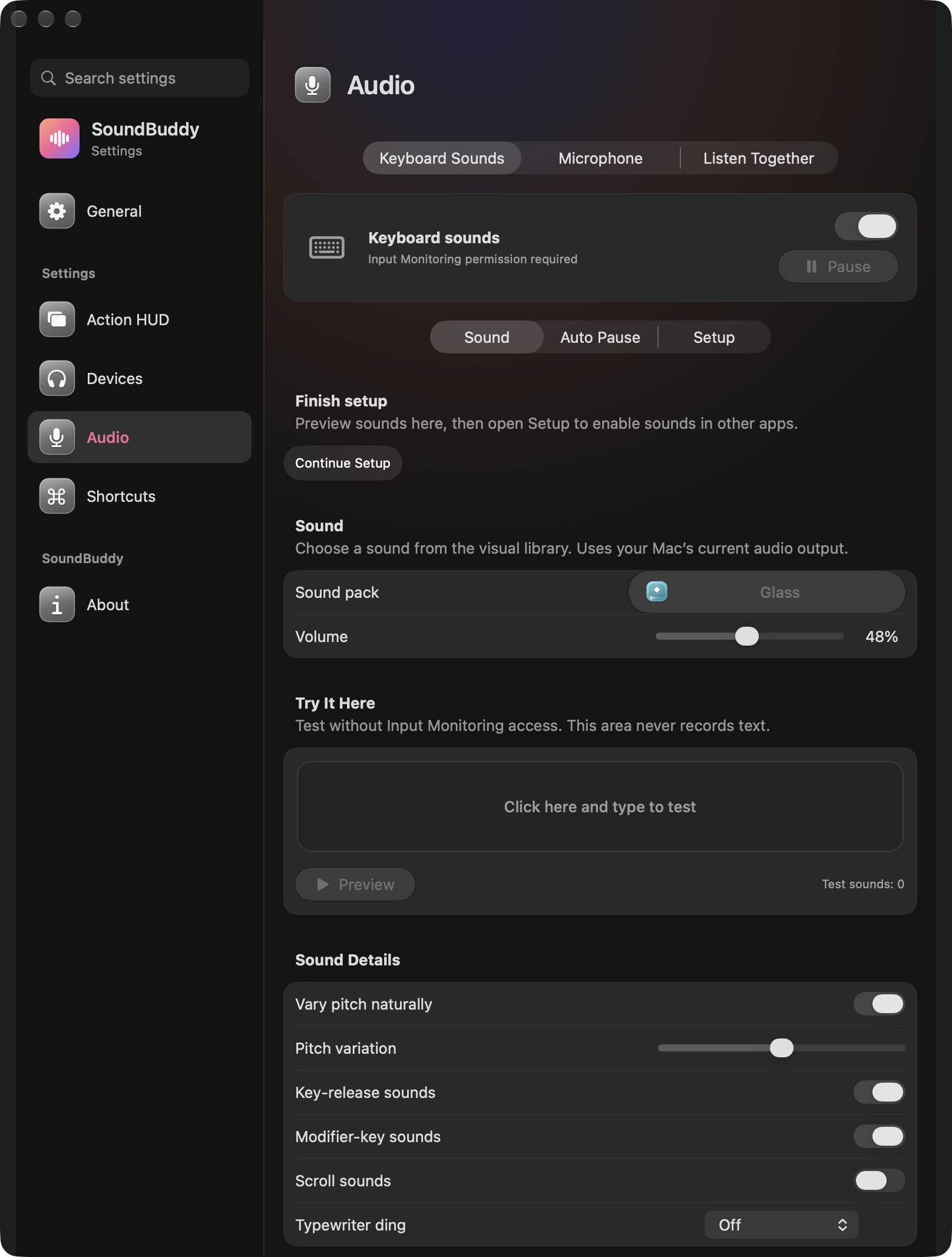
Open the full-size actual keyboard-settings capture
SoundBuddy is our product. The setup message in this capture concerns its keyboard feature. It does not establish a guitar's direct-monitor path or the software return you hear. The similarly named recording-app input-monitoring option belongs to that app's audio workflow.
If the physical source type is uncertain, use the Mic, Line and Inst guide before changing a listening mix.
No interface monitoring, amp-simulator playback or recording comparison was performed for this article. The proposed outcome is identifying the path you intend to hear; no timing, tone or productivity improvement has been measured.
Next step: name the headphone destination and intended clean or processed path, then inspect only the sources feeding that destination.