Mic, Line or Inst? Check the source before changing Mac volume
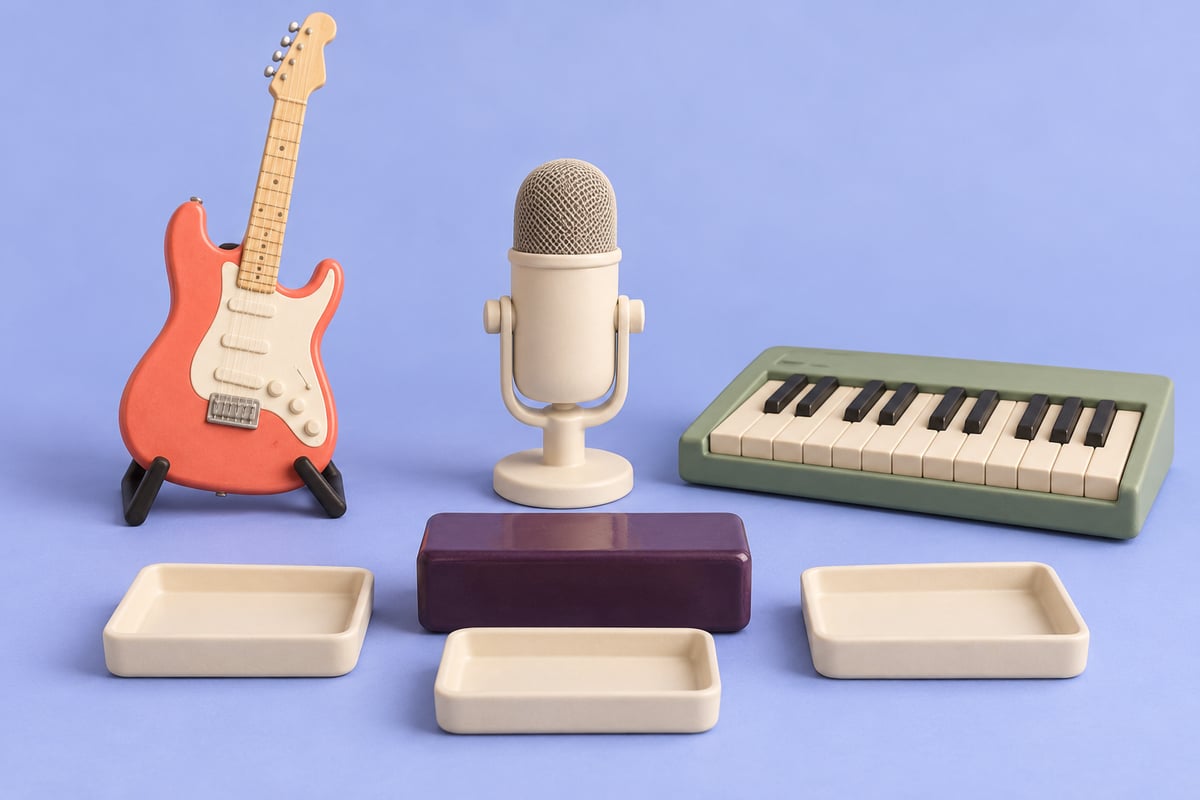
A Mac can show the intended audio interface while a recording still arrives too quietly, sounds overloaded or reaches the wrong track. The interface's physical input type is another choice to inspect. Selecting its name in an app does not establish how a guitar, microphone or keyboard audio output enters the hardware.
Before adjusting every gain control, name the source, the physical input and the receiving track. Those three observations give the next change a purpose.
Match the documented source to the input type
Focusrite's input-level reference distinguishes microphone, line and instrument sources. Microphone and pickup signals need suitable amplification; line sources such as a synthesizer's audio output have a different level. On an input that supports both line and instrument operation, the Inst choice changes how that input accommodates the source.
Use the labels and manual for your exact interface and generation. A direct guitar pickup and a keyboard's documented line-level audio output are different cases. A keyboard sending USB MIDI is also a different connection task from an analogue audio feed.
Shure's mic-versus-line explanation describes why a microphone into a line input can be very quiet, while a line source into a microphone input can overload it. It also cautions that a connector fitting does not establish a correct level match.
These are reasons to check the source and input documentation, not a diagnosis of every quiet or distorted recording. Do not infer the electrical connection from the name shown in the Mac's input menu.
Make a source-to-track note
Before a recording session, write down:
- Source: the microphone, guitar pickup or device's named audio output.
- Hardware destination: the interface model, generation and physical input label.
- Input type: the documented Mic, Line or Inst choice for that connection, where applicable.
- Software destination: the recording app's selected interface and the track's selected input channel.
- Observation: whether the interface indicates input and whether the intended track receives it.
Use the manufacturer's instructions before changing a connection or switch. An amplifier's powered speaker output is not a substitute for a line output; Focusrite explicitly warns that speaker-level signals can damage inputs designed for lower levels. If the source or connector purpose is uncertain, identify it before connecting it.
Once the connection is documented, make only the appropriate available input-type change if one is needed. Keep input gain, app processing and track selection otherwise steady for a short, ordinary comparison. Follow the interface's own setup instructions, rather than copying another generation's channel number or switch layout.
Do not use the Mac's headphone-volume keys to judge whether the source matches the interface input. Listening level and the signal entering the interface are separate observations.
If Inst is already correct, investigate the next stage
A public MacBook Air and Scarlett report describes a guitar with Inst already enabled. The author reported activity at the interface and sound through its headphones, but only intermittent input in Logic. They also reported selecting the interface and enabling the track.
That case does not support diagnosing the problem as a forgotten Inst switch. It illustrates why an interface indication, local listening and a recording app's captured track should be recorded separately. The discussion does not establish the cause or a confirmed fix, and no recording from it was inspected for this guide.
If your physical source and input type already match the manual, retain that fact. Check the receiving channel and application processing instead of repeatedly changing the same hardware switch. The microphone-processing guide explains one software layer; the mono-meter guide explains why a single active channel is not automatically a fault.
SoundBuddy selects a logical input, not its electrical type

Open the full-size actual microphone-controls capture
SoundBuddy is our product. Its displayed input choice concerns the Mac's logical source. That is separate from an interface's physical source type and an audio app's track routing. The capture is not a compatibility result for a Focusrite interface or a recorded-sound test.
For maintaining an available preferred default, use the Input Lock guide. It does not replace the hardware and track checks above. If the source itself is correct but captured loud passages distort, use the separate clipping investigation.
No interface, instrument, recording or input-type comparison was performed for this article. The intended benefit is identifying the stage that needs attention before repeating setup work; no improved tone, recording quality or productivity result has been measured.
Next step: write the source, physical input label, documented input type and receiving track channel on one note before making another adjustment.