Music stops when your Mac goes idle? Check power and output separately
If a listening session stops after you leave the keyboard alone, record more than the fact that the screen went dark. The player, the Mac's power state and the selected audio route are separate parts of the setup.
This matters when speakers are connected through an external display. Keep that path in the note before assuming the music player, Bluetooth connection or a utility caused the interruption.
Record the event before changing settings
Write down the Mac model and macOS version, whether it is on battery or an adapter, the player and the output device. For an external display, note whether the speakers connect to that display or directly to the Mac.
Record what happened immediately before the interruption: an inactivity timeout, choosing Lock Screen, choosing Sleep, closing a lid or turning off an external display. Those are different events; a dark screen alone does not establish which one occurred.
After returning to the working setup, inspect whether the player is paused, still progressing or showing an error. Check the selected output again. If the output changed or disappeared, retain that observation separately from the player's state.
For a microphone that becomes silent only when a MacBook lid closes, use the closed-lid microphone guide. This article concerns an idle listening session, not configuring a closed-display workstation.
Inspect the power control for the Mac you actually use
Apple's sleep-settings guidance distinguishes laptop and desktop controls. On a laptop, it places Prevent automatic sleeping on power adapter when the display is off in System Settings > Battery > Options. On a desktop, the corresponding automatic-sleep control is under Energy.
Inspect the available option and its current value. The laptop control explicitly concerns adapter power; do not treat it as a promise about battery use or every app's playback. Apple notes that options depend on the Mac and that preventing or delaying sleep can increase power consumption.
If the option differs from your intended desk setup, compare that choice alone. Keep a note of the original value so you can restore the power behaviour you want. Do not change all inactivity timers to their longest values as a general audio fix.
Keep the display audio path in the comparison
A public Mac report describes a plugged-in MacBook with speakers connected through an external display. Music stopped after what the author identified as sleep. The author had already tried the available prevent-sleep option without resolving it.
That report establishes a real troubleshooting question, not a confirmed cause. It does not prove a faulty display, a bad cable or a setting that will repair another Mac. Keep the existing audio path visible rather than installing a suggested utility or copying power commands from the replies.
If you have an already available alternative output, it can provide a separate comparison. Return to the normal working state first, select that output deliberately, keep the same short passage and note the result under the same inactivity event. Do not change the power option and audio route in the same comparison.
For a route that has no usable software volume control, the output-control guide addresses that separate limitation.
Use one short observation sheet
Outside a call, recording or file transfer:
- Record adapter or battery, the exact selected output and the player's state.
- Note the existing automatic-sleep preference if your Mac offers it.
- Keep the same player and familiar, non-sensitive passage for the comparison.
- Compare one intended power preference or one existing output route, not both together.
- Record the actual event and the result after returning to the working state; restore your preferred configuration.
If the option was already set as intended or the problem persists, keep that result. An actionable support note contains the Mac/macOS version, power source, display/speaker connection path, player, event and previous comparisons. It does not need private desktop content or an unverified hardware diagnosis.
SoundBuddy popup preferences are a separate layer
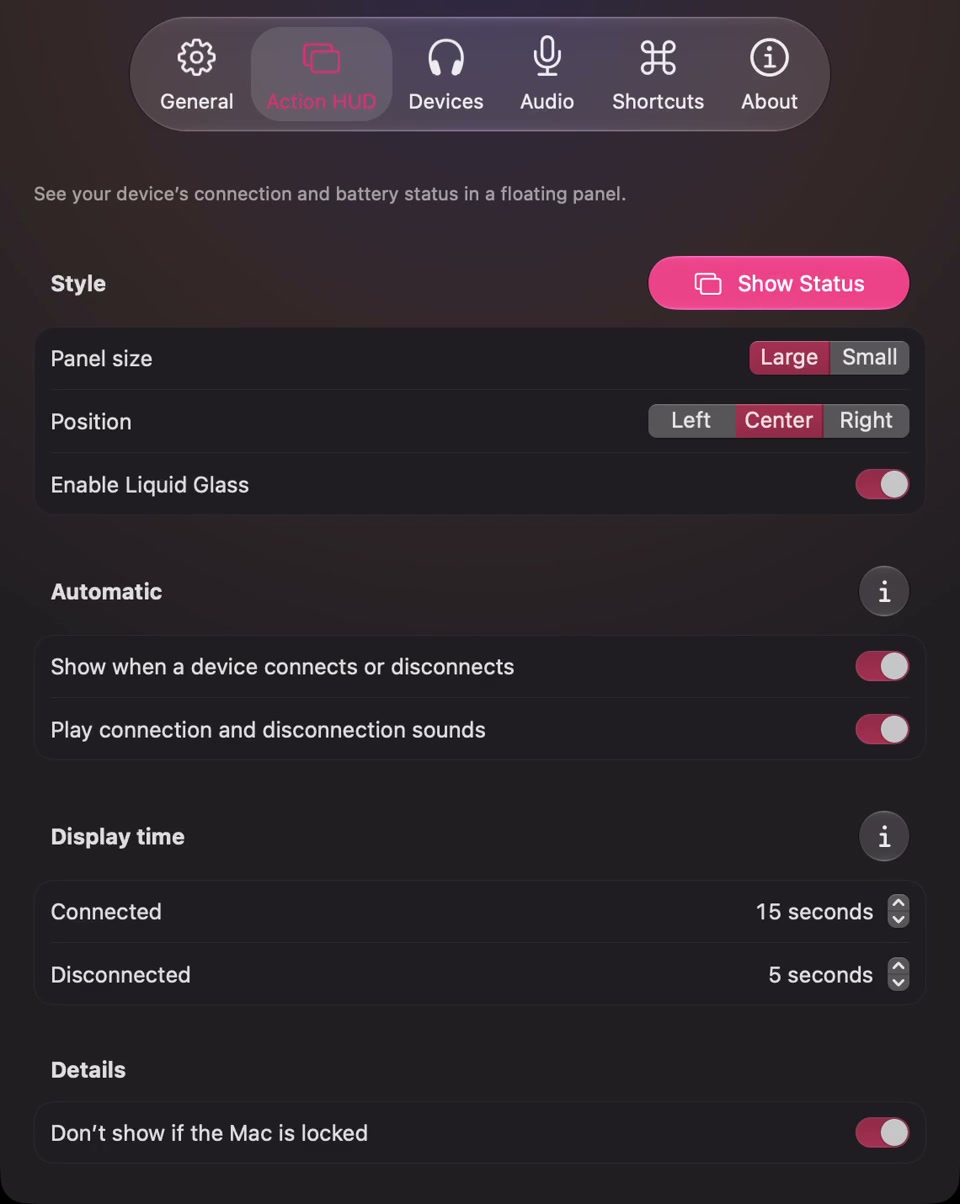
Open the full-size actual HUD-settings capture
SoundBuddy is our product. The locked-Mac popup guide concerns automatic floating status updates. That preference is not a keep-awake control or a way to configure music playback during sleep. Keep it separate from the power and output observations above.
No sleep, display, hardware or playback test was performed for this article. The useful outcome is isolating the interrupted stage of a listening session; no energy saving or productivity improvement has been measured.
Next step: record the power source and display audio path, inspect the relevant available sleep option, then compare one layer at a time.