MIDI keyboard recognised but silent? Separate notes from audio on Mac
A MIDI activity indicator can respond while you hear no instrument. Treat those as two observations: note information is reaching one stage, but audible output has not been established. Repeatedly changing the Mac's microphone is unlikely to explain which stage went quiet.
First decide what should make the sound. Are you playing a software instrument on the Mac, or expecting an external keyboard or sound module to produce its own audio? Keep that intention in your troubleshooting note.
Check received MIDI information separately
Apple's MIDI connection test uses Audio MIDI Setup > Window > Show MIDI Studio. Choose the relevant configuration, enable Test MIDI Setup and play a note on the attached controller. The device's upward arrow highlights when the signal is received. Turn test mode off afterward.
An icon being present and an input indication responding are different results. Record which one you observed. If the expected signal does not appear, retain the controller, connection and configuration details for the manufacturer's instructions rather than changing audio volume to compensate.
Apple also distinguishes MIDI signals from a device's audio output. An external module needs its own appropriate audio connection to be heard. Do not assume every controller generates an audible instrument tone just because it has keys or a USB connection.
Compare the instrument without changing the controller
For a software-instrument setup, inspect the selected instrument track and intended sound before changing cables. In a separate test project, use an instrument you already have and keep the audio output steady.
Apple's Logic software-instrument guide describes playing the chosen instrument with a music keyboard, Musical Typing or the onscreen keyboard. In Logic, select the software instrument track and use Window > Show Keyboard to compare a few onscreen notes. Follow your app version's guide if its controls differ.
Use the result to choose the next investigation:
- Onscreen notes sound, but the controller does not: inspect the controller-to-track input path while keeping that instrument and output unchanged. This does not by itself prove a faulty cable or keyboard.
- Both are silent: inspect the chosen instrument and its listening output before assuming the controller caused the silence.
- The controller reaches MIDI Studio but not the intended track: record the application's input and track state separately from the Mac-level indication.
Keep mute, selected instrument, output destination and controller configuration in the note. Avoid changing them all during the same comparison. There is no need to record a production performance just to describe where the result differs.
Do not turn an older report into a universal repair
An older GarageBand discussion describes MIDI input appearing to work while sound stopped. The author later reported that updating GarageBand resolved their case.
That is a reported experience, not an independently verified current bug or a guarantee that an update fixes another setup. Record the installed application and macOS versions if you need support. The useful distinction is between observed note activity and heard sound, rather than assuming one past cause applies everywhere.
If you are sending a keyboard's analogue audio output into an interface instead, use the Mic, Line and Inst guide. If notes are audible but arrive late, use the instrument-delay guide. Those are different problems from complete silence.
SoundBuddy typing sounds are a different keyboard layer
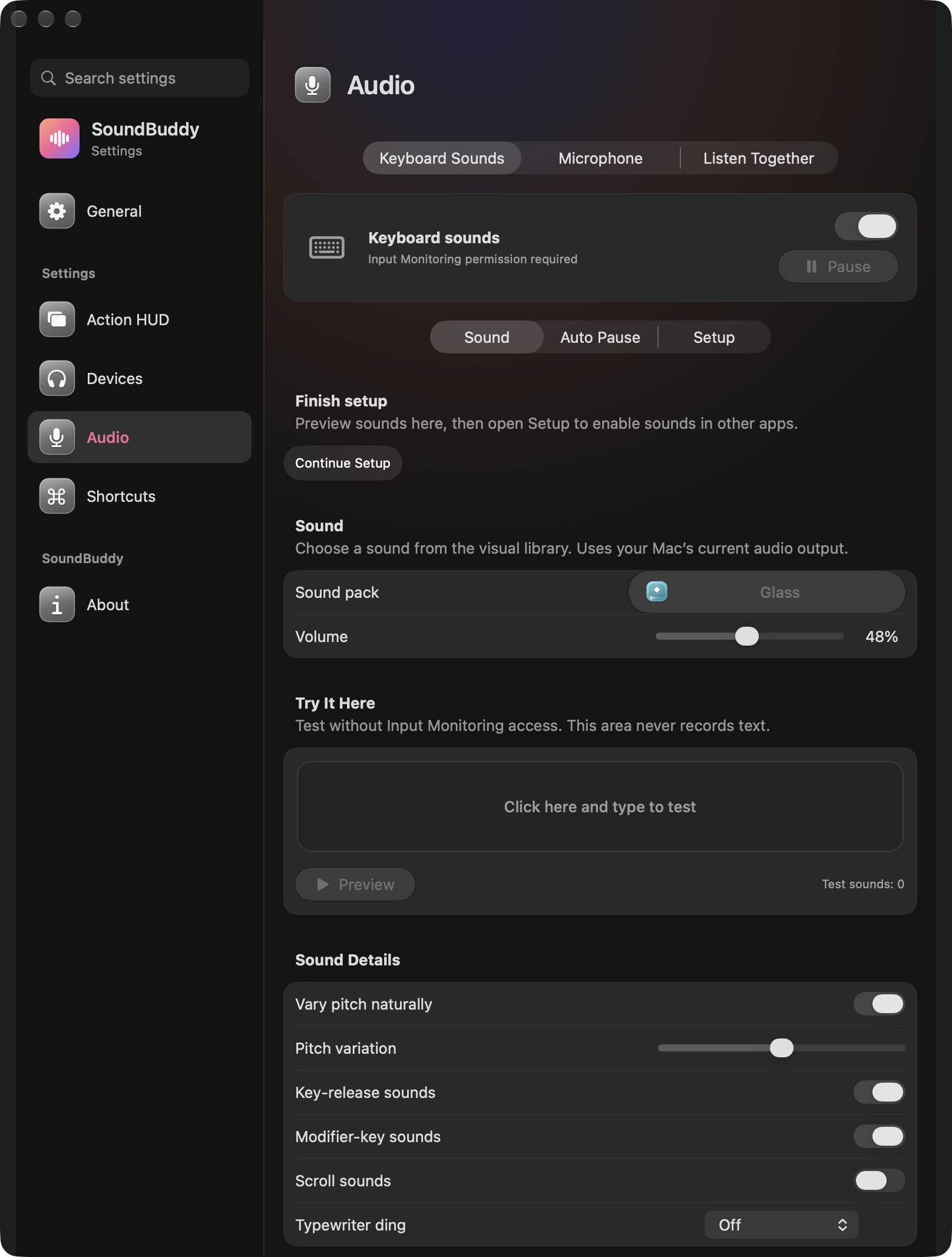
Open the full-size actual keyboard-settings capture
SoundBuddy is our product. Its typing effects and their volume control are separate from the instrument a music app plays. A click heard while pressing a computer key is not proof that the intended musical note reached the selected instrument. The captured percentage is not a recommended listening level.
No MIDI connection, instrument playback or recording test was performed for this article. The proposed workflow is intended to locate the next useful check; no latency, musical quality or productivity improvement has been measured.
Next step: write down whether MIDI input responds, whether an onscreen note sounds and which output you expect to hear. Change only the stage those observations point to.