Keyboard sounds go quiet in protected input: check the state first
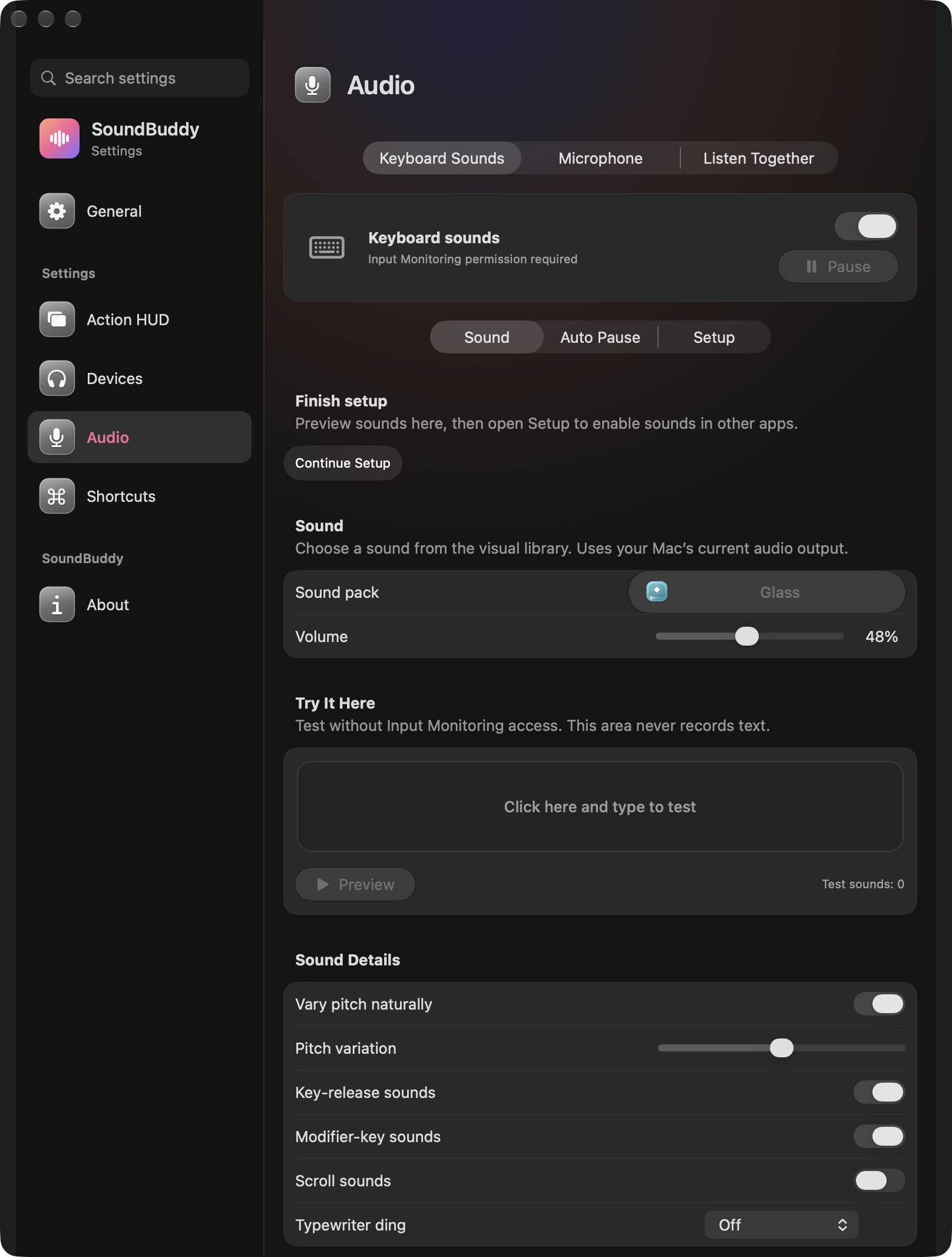
If SoundBuddy's typing sounds stop around a protected input context, inspect its status before changing permissions or increasing the volume. The app includes a playback gate for Secure Input and other inactive-session conditions. Silence can be intentional.
SoundBuddy is our product. This guide explains the boundary shown in its controls and current source. It does not report a password-entry test, and the screenshot does not show Secure Input actively engaged. Its visible permission warning describes a different reason for silence.
Keep the protection in place
Apple documents Secure Keyboard Entry in Terminal as a way to prevent other apps from detecting what you type there. That is a specific Apple example of protected entry. It should not be expanded into a claim that every password field or application behaves identically.
SoundBuddy's current playback logic treats Secure Input as a blocked session condition. Its source also groups inactive-session conditions into that boundary. A combined status message therefore may not tell you which condition applies. Do not assume that every quiet moment proves Secure Input is active.
Distinguish four states
Read the app's keyboard status and compare it with the context you are actually in:
| Observation | Useful next check |
|---|---|
| Permission required | Review Input Monitoring only if you want global typing sounds |
| Paused until you resume | Decide whether to resume your manual pause |
| Session inactive or Secure Input message | Return normally to an ordinary unlocked work context |
| Microphone or Bluetooth-output pause message | Inspect that optional Auto Pause condition |
The keyboard setup guide covers the first row. The microphone Auto Pause guide covers a separate optional condition. Avoid treating a protective pause as a missing-permission problem.
Observe without entering private text
Finish any protected interaction normally. When you are back in an ordinary unlocked editor, use a harmless phrase and inspect SoundBuddy's status again. If sounds remain quiet, record the message and whether you are using the local test pad or typing in another app.
Do not enter a real password into an ordinary editor for comparison. Do not turn off a protection simply to restore decoration. If a status remains unexpected, use the support report template and describe the application and sequence without including typed content.
A static settings photo establishes the presence of controls, not successful recovery after every protected session. Confirm the observed result on your own Mac and installed version.
Next step: note the exact status, then compare it in a normal unlocked work context after completing the protected interaction.