AirPods pause on removal? Check Automatic Ear Detection on Mac
Removing an earbud and seeing playback pause is a different observation from losing the Bluetooth connection. If you want listening to continue while you briefly remove an AirPod, inspect the wear-detection preference before changing your Mac's microphone setup.
Start with three separate fields: what the player did, which output was selected and whether the device remained connected. A connection label alone does not explain a pause.
Find out whether the player paused or the sound became silent
Use a familiar, non-sensitive passage outside a call or recording. Watch the player's progress and Play/Pause control rather than relying only on what you hear.
- The player pauses when an earbud is removed: inspect Automatic Ear Detection and the intended playback preference.
- Playback continues but is inaudible: establish the selected output and the player's own volume or mute state.
- The connected device disappears or reconnects: retain that connection change as a separate event.
- Media gets quieter when you speak: use the Conversation Awareness guide for that different trigger.
Note whether the interruption followed removal, reinsertion, touching a control or opening a different app. Do not treat those events as interchangeable evidence.
Inspect Automatic Ear Detection in Mac settings
Apple's AirPods settings guide describes Automatic Ear Detection pausing and resuming playback with removal of one AirPod, while removing both stops playback without automatic resumption. Its Mac instructions use System Settings > your AirPods, with Audio & Routing first if the option is not shown.
Wear and connect the AirPods before inspecting the available setting. Record its current state, then choose the preference that matches how you want removal to affect listening. The guide explains that disabling detection also disables those automatic behaviours and leaves audio going to the AirPods whether they are worn or not.
That tradeoff matters if you wanted removal itself to stop playback. Keep an explicit player Pause action available rather than assuming the same automatic stop still applies after changing the preference.
This guide covers the earbud setting. Do not apply an earbud workflow to a different headset model merely because both devices are connected by Bluetooth.
Compare one removal event without adding a button press
A useful comparison keeps the player and audio route stable:
- Record the Mac/macOS version, AirPods model, selected output and ear-detection state.
- Start a short familiar passage at your unchanged, comfortable listening level.
- Remove one earbud deliberately, without also pressing its playback control. Observe the player and connection state separately.
- If you choose a different available ear-detection state, compare the same passage and event once more.
- Keep your intended preference and pause the player explicitly before finishing.
If the event includes a physical press, keep that in the note. This comparison does not establish what a button was configured to do. If you are investigating meeting mute controls, use the separate Zoom headset-button guide.
No purchase, reset or change to Input Monitoring is part of this comparison.
If pauses continue with detection off, keep the mismatch
A public AirPods discussion describes pauses while adjusting an earbud, even after the author had tried turning automatic ear detection off. The author repeats that the suggestion did not help. The post concerns use while running and does not identify a Mac setup or establish a cause.
It is a useful boundary: a pause while touching an earbud is not enough to diagnose ear detection. If your player still pauses under the intended setting, record the app, exact gesture and connection result. Do not keep repeating the same toggle or adopt a hardware diagnosis from an unresolved anecdote.
For site-specific browser silence while playback continues, the Safari audio guide is a different investigation. For actual device takeover, use the AirPods switching guide.
Read SoundBuddy's displayed connection as one field
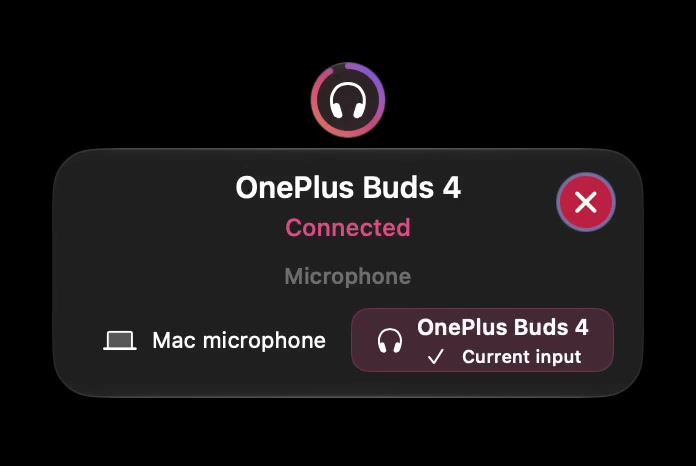
Open the full-size actual connection capture
SoundBuddy is our product. This panel identifies the displayed connection and microphone choice. It does not establish whether earbuds are being worn or whether a player should resume. The device-state guide keeps those displayed fields separate from listening results.
No AirPods removal or playback test was performed for this article. The intended outcome is a clear preference and an actionable observation; no improvement in concentration or productivity has been measured.
Next step: inspect the available Automatic Ear Detection setting, then compare one deliberate removal while observing the player and connection independently.