Bluetooth audio stutters at your desk? Compare hub placement
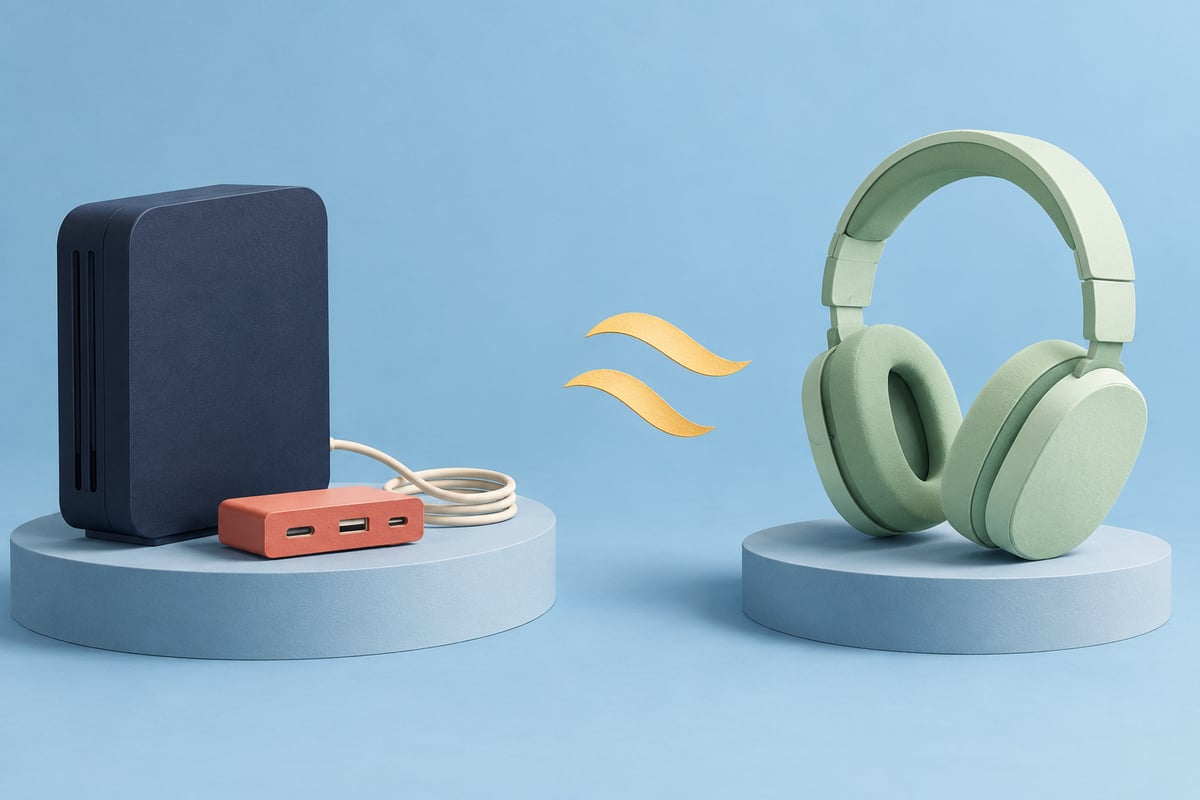
A headset can remain connected while its audio skips. If the problem appears at one desk, make the desk layout part of the observation before changing microphone preferences or replacing hardware.
The useful question is narrow: does the same short clip behave differently when an existing nearby hub is moved, with the listening route otherwise unchanged? A difference is evidence to retain, not a complete diagnosis.
Separate interruptions from a microphone-mode change
Start by describing what you hear: intermittent gaps, a continuously different sound, or a delayed response. These are different observations.
Apple's Bluetooth headphone quality guide explains that using a headset's built-in microphone can change its audio mode and reduce listening quality. If the change starts when a call opens, use the Mac microphone and Bluetooth listening guide first. Do not classify every reduced-quality result as desk interference.
For delayed software-instrument monitoring, the Bluetooth delay guide covers a separate problem. Moving a hub is not a promise of low-latency monitoring.
Make the physical layout visible
Apple's wireless interference guidance lists skipping or interrupted Bluetooth audio among possible interference symptoms. It recommends separating USB 3 or Thunderbolt 3 devices, including hubs, from wireless devices and avoiding placement on top of the Mac. These are possible contributors, not proof that every dock causes audio trouble.
Sketch the actual arrangement: Mac, headset, hub, external drive and nearby obstacles. Note where the hub sits, rather than guessing its internal shielding or radio behaviour. Do not assign an unsupported distance threshold.
A public Mac mini discussion describes keyboard delays and reports that moving hubs and drives helped. That is an anecdote about input devices, not an audio test or evidence that your headset has the same cause. It makes layout worth recording while leaving the cause open.
Compare placement without changing the whole setup
Choose a time outside a call, recording, backup or file transfer. If a connected drive or cable cannot safely be moved, leave it alone and record that the comparison was unavailable.
- Use a short, familiar, locally stored clip that you already have permission to play. Keep listening volume comfortable and unchanged.
- Record the selected output, microphone use, connected devices and original hub position.
- If existing cable slack permits, move the hub away from the Mac and headset without straining, disconnecting or covering equipment.
- Replay the same section through the same output. Record whether interruptions remain, disappear or vary.
- Retain the preferred safe arrangement and the observation. A single clean replay does not establish a permanent fix.
Using the same local clip keeps a changing streaming connection out of this particular comparison. That is a way to narrow the question, not a claim that the file measures radio interference.
Do not unplug active storage as a shortcut. If disconnection becomes necessary, finish the operation and follow the device's normal safe-ejection procedure first. This article does not require a new cable, adapter, router configuration or purchase.
Keep connection status separate from uninterrupted audio
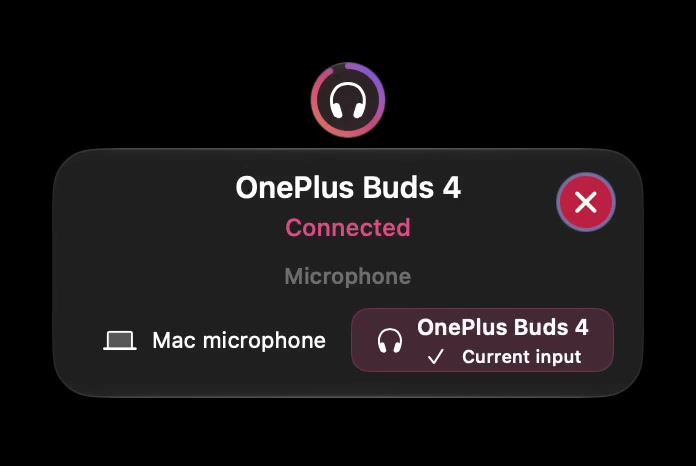
Open the full-size actual device-status capture
SoundBuddy is our product. This panel can identify the displayed accessory and input state; it does not measure packet loss, identify a noisy hub or repair a wireless link. The paired, connected and selected guide explains those different states.
If the observed issue is a microphone preference changing after reconnection, keep that result for the reconnect observation log. It is a different question from audio gaps while the listening device remains selected.
Use the result to choose the next investigation
Keep a small note with the original layout, changed placement, same-clip result and whether microphone use differed. If interruptions persist, that result matters too. Share the exact headset, Mac/macOS version and comparison with the relevant support team before adopting reset commands or buying a replacement.
No radio, hardware or playback test was performed for this article. Fewer interrupted work sessions would be a useful outcome, but no productivity improvement has been measured.
Next step: document one safe placement comparison while keeping the clip, output and microphone state consistent.