Typing sounds stop with Bluetooth headphones? Read the pause rule

If SoundBuddy reports that keyboard sounds are paused because Bluetooth audio output is selected, inspect its optional output condition before changing sound packs or permissions. The rule can pause typing feedback and native previews when that output is in use.
SoundBuddy is our product. This guide explains one intentional pause condition. It does not diagnose every silent headset, promise Bluetooth compatibility or change the audio quality of a call.
Find the condition that matches your intention
Open SoundBuddy > Settings > Audio > Keyboard Sounds > Auto Pause. If your installed copy offers When using Bluetooth audio output, read that switch separately from When a microphone is in use.
Enable the Bluetooth condition if you want SoundBuddy feedback to pause in that arrangement. If you want feedback while listening through Bluetooth headphones, that pause condition may be contrary to your intention. Review it deliberately rather than assuming it means “play only in headphones”.
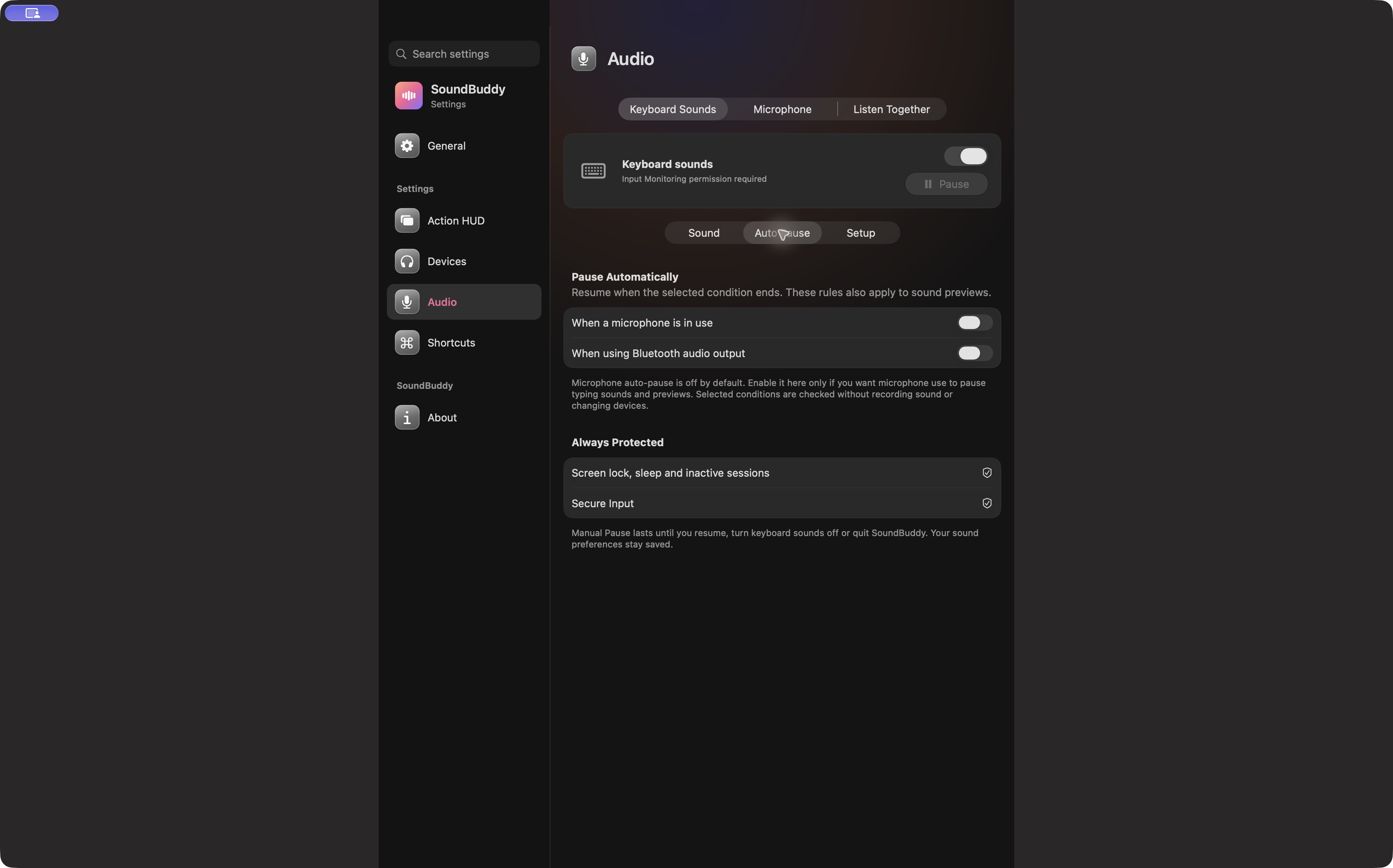
Open the full-size app capture to inspect the labels.
Check the selected output, not just a connection label
An accessory can be connected without being the Mac's selected sound output. Open System Settings > Sound > Output and note the current device. Apple's output-settings guide explains this selector.
SoundBuddy's condition checks the default output's reported transport. It does not simply ask whether any Bluetooth device is nearby or paired. Connection methods and receivers can affect what macOS reports, so this guide does not certify the classification of every wireless accessory.
For the broader distinction, use the paired, connected and selected guide. Avoid disconnecting several devices just to discover which output was selected.
Read the reason for the pause
- Bluetooth audio output is selected: the enabled output condition has a Bluetooth reading to act on.
- Audio output unavailable: the condition could not obtain a usable output classification. This is not confirmation that a Bluetooth output is active.
- Another reason or a setup requirement: inspect that state instead of assuming the Bluetooth condition is responsible.
An unavailable reading can keep feedback paused while this condition is enabled. Turning the condition off does not grant Input Monitoring, end a manual pause or disable the protected session rules. The exact status matters more than a general description such as “the sound pack broke”.
Compare one preference without rebuilding your setup
Use a quiet moment outside a real call. Keep the pack, volume and intended output steady.
- Note the output name, SoundBuddy's status and the Bluetooth pause switch's present state.
- If that condition is enabled and you want feedback on this output, switch only that condition off.
- Read the new status. Use the native local test deliberately if you want to compare a preview; do not assume a setting change itself demonstrated playback.
- If another pause reason or permission requirement appears, follow that branch. If the result suits you, keep the preference; otherwise restore the original choice.
No Bluetooth playback test was performed for this article. A local preview and typing across apps also have different setup requirements, explained in the preview and global setup guide.
If feedback is still quiet
Check the displayed manual pause and setup state, then the selected output and typing-sound volume. If you deliberately want microphone activity to pause feedback, use the separate microphone Auto Pause guide.
Keep screen-lock, sleep and Secure Input protections intact. If the status is unclear, save its exact wording, the output name and your app version for a non-sensitive support report. Changing several conditions at once makes the useful observation harder to recover.
Next step: compare the Bluetooth output condition with your intended listening setup, and record the exact status before changing another setting.