A screen recording needs an audio-source decision: narration and computer sound differ
Before recording a demonstration, decide what the resulting file should contain: your narration, the Mac's playback audio, or both. A screen image and a selected microphone do not, by themselves, establish that computer sound is being captured.
Identify the recorder and operating-system version
Apple's screen-recording instructions distinguish Screenshot from older QuickTime recording controls. Choosing a microphone records voice or other sound reaching that input. The current article separately documents Include System Audio for macOS 27 or later. Do not assume that version-specific option exists on an older Mac installation or that a microphone choice is equivalent to it.
Start from the controls actually available on your Mac. Record the operating-system version, recorder and source choices before following instructions written for another version. If QuickTime opens Screenshot controls, describe the recorder you actually see rather than expecting an older window.
Apple also provides a separate screen and system-audio permission guide. Permission to access a source and a recorder's decision to include it are different observations. Only grant access to an app you intend to use.
Make a small source checklist
For a reader-led check using only your own non-sensitive material:
- State whether you want narration, computer playback or both.
- Inspect the recorder's available source controls and their version requirements.
- Keep private notifications, account information and other people's content out of the selected screen area.
- Make a short sample only when you intend to retain it, then stop and locate the saved file.
- Reopen that file and check the intended sound sources separately. Hearing audio while recording is not proof that it entered the file.
Some apps restrict capture. Do not bypass a content restriction or assume a permission switch guarantees every source can be recorded. Keep the exact source and missing sound in your support note.
SoundBuddy input state is separate evidence
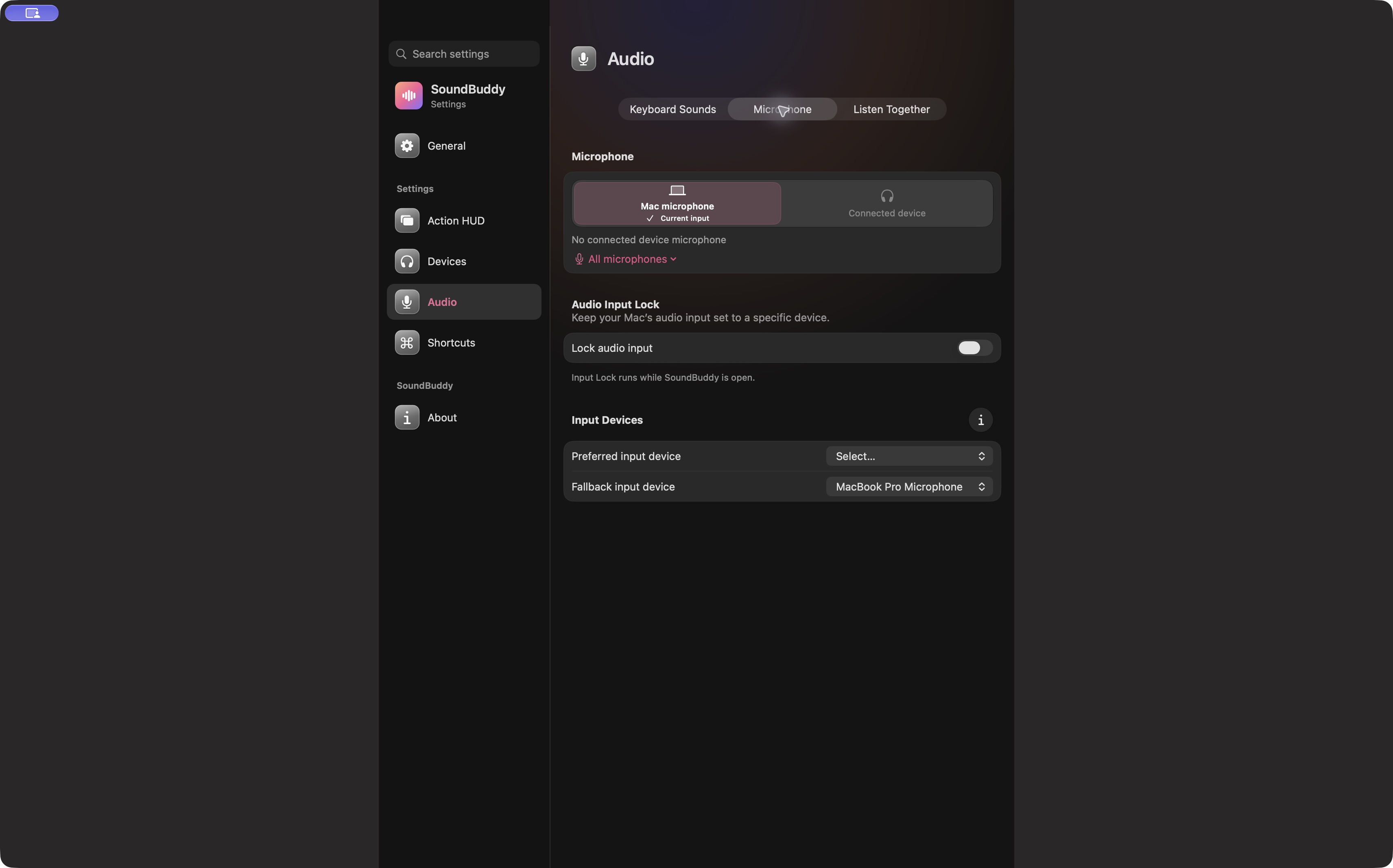
Open the full-size actual microphone-settings capture
SoundBuddy is our product. Do not interpret an input-selection screen as a video recorder, loopback device or proof that playback audio reached a saved demonstration. Confirm the recording app's own choices.
If your problem concerns audio sent to a meeting audience, the Meet clip-sharing guide addresses that separate live-sharing path.
No screen, microphone, audio, permission or recording operation was performed for this article. No capture or productivity result is claimed.
Next step: write down the intended sound sources and verify them in a short saved sample before relying on a full demonstration.