Music reaches an AirPlay speaker but other Mac audio does not? Check the selection scope
If music reaches a remote speaker while another app stays on your Mac, write down where you selected that speaker. Choosing a destination inside Music and choosing one through the Mac's Sound controls are separate observations.
Start with the sound you actually want to move. A music-only listening session and a desk session involving several apps need different checks. Changing a microphone input is a separate decision again.
Find the control that selected the speaker
Apple's AirPlay audio guide documents two Mac paths. In Music, the AirPlay button in playback controls can select a speaker or multiple speakers. For audio from a different app, the guide uses Control Centre, Sound and AirPlay to choose a speaker. It says multiple-speaker streaming is not available through that Mac Control Centre path.
The guide also requires the Mac and speakers to be on the same network. Do not transfer its iPhone automatic-connection settings onto the Mac or assume every app has Music's speaker controls.
Record which of those places you used. A checked speaker in one view does not, by itself, demonstrate where a different app is sending audio. Apps with their own routing choices need their own inspection too.
State the intended listening setup first
Before changing a destination, decide which result you want:
- Music on a remote speaker while another app stays local.
- A different app's audio on the remote speaker.
- Several remote speakers for a Music listening session.
Those are not interchangeable tests. The multiple-speaker choice described for Music is not proof of the same option in the Mac's other controls. An input device or headset connection label does not establish any of them.
For a small comparison outside an important call or recording:
- Note the source app, selected destination in Music and selected destination in the Mac's Sound controls.
- Use a short piece of existing audio that you are entitled to play. Keep the content and listening level consistent.
- Inspect the control matching the source you want to hear. Change one destination choice if needed, rather than changing the network and every app at once.
- Record where the audio is actually audible. A moving progress bar or “playing” label is not the same observation as hearing sound from the intended speaker.
- Restore the previous destination if the new choice does not suit your desk setup.
Do not turn the volume up sharply just because one path is silent. Preserve the route note before attempting wider troubleshooting.
A working Music path does not prove every path works
A public HomePod report describes a Mac on macOS 15.5 with HomePod software 18.5. The author reports silence through the Mac's Sound selection while Music's own selection was audible.
The author later reports improvement after changing the wired-dock connection and toggling Wi-Fi. That is their reported outcome, not a reproduced diagnosis or a general recommendation to disconnect your network. It does not establish a current macOS defect or prove that your speaker has the same cause.
The useful evidence is the difference between two named selections. Capture that distinction in a support note, along with software versions and whether the behaviour follows one source app or several. Keep customer audio and network credentials out of the report.
Keep SoundBuddy feedback separate from Music's destination
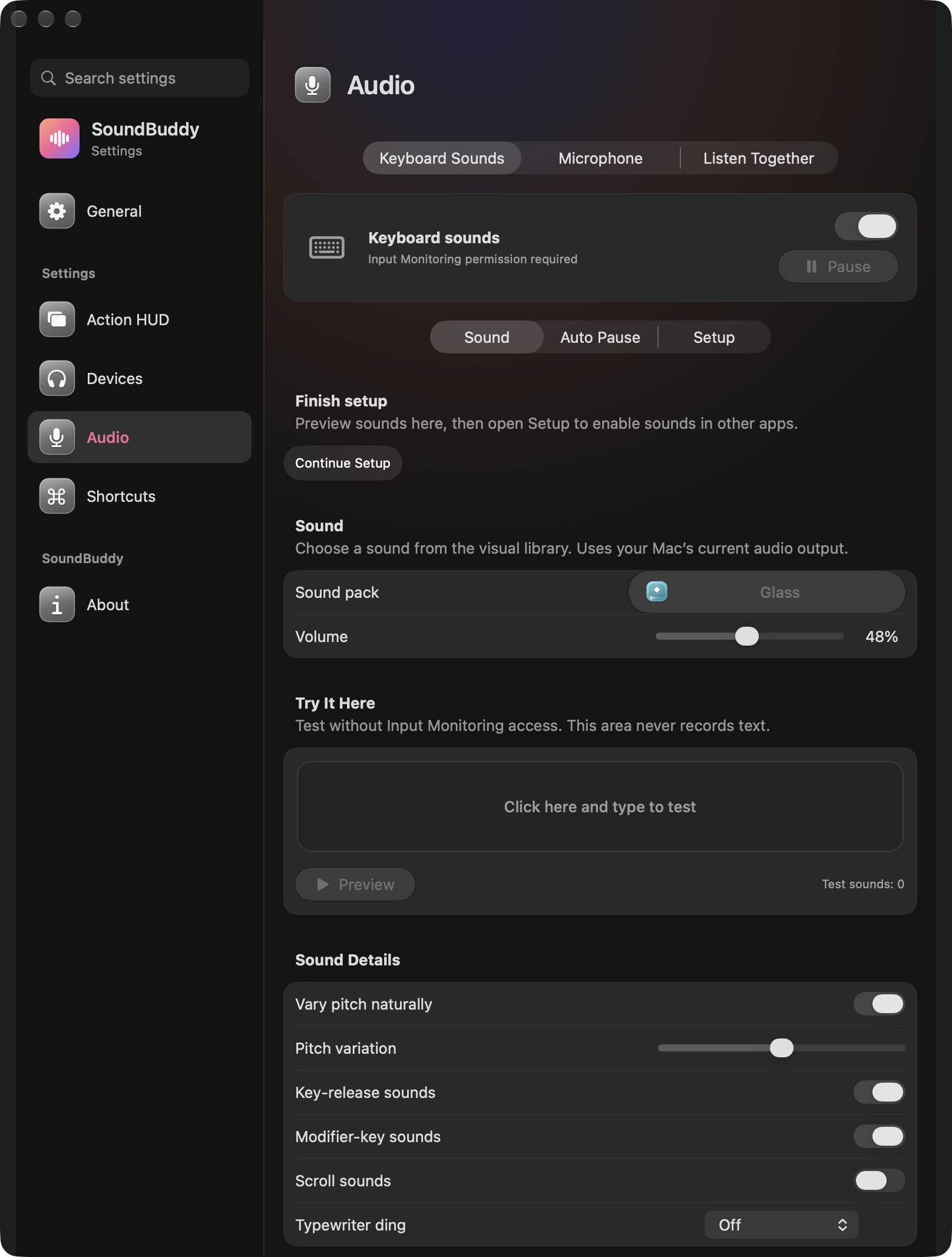
Open the full-size actual keyboard-settings capture
SoundBuddy is our product. Do not assume that selecting a speaker inside Music also selects the destination for typing feedback. This capture does not establish SoundBuddy compatibility, timing or audibility with a particular AirPlay device.
If you are choosing between combining input channels and shared playback, the separate Aggregate and Multi-Output guide addresses that task. If the sound only stops when the Mac becomes idle, use the power and output guide.
This is public-documentation and desk research. No AirPlay or network comparison was performed, and no synchronisation, sound-quality or productivity result was measured.
Next step: name the source app and the control that chose its destination, then record actual audibility separately from a selected or playing label.