Which SoundBuddy version are you checking? Compare About with Finder

A downloaded installer, an app selected in Finder and the SoundBuddy window already open on your Mac are different things to identify. Before reporting that an update did not change a feature, record the version displayed by the app you are actually using.
A filename containing a newer version is not evidence that the open app has that version. Start with observations rather than deleting copies or repeating the installation.
Record the open app's About information
Open SoundBuddy Settings and select About. Read the version and build text near the product name. Keep both parts in a support note when both are shown, rather than writing only “latest version.”
The released 0.4.1 build 25 implementation reads these values from the app's own bundle information. This explains what the About text identifies. It is not a test of every feature or proof that every app file elsewhere on your Mac has the same identity.
If you are comparing a screenshot with your installed copy, note when that screenshot was captured. An older image can show genuine controls without representing a later release's layout. A visual difference alone does not identify its cause.
Read the selected file's version separately
Apple's app-version guide describes selecting an app in Finder's Applications folder and choosing File, Get Info, or pressing Command-I. The version appears in the General section.
Write down which file you selected and where you found it. A copy in Applications, another folder or an opened installer image should not be treated as the same file merely because each has the same app name.
Get Info describes the selected file. About describes the app whose settings you opened. If those version observations differ, preserve both in your note. If they match, that still does not establish that two copies are byte-for-byte identical or prove a particular feature works.
Do not alter an app's package contents, reset preferences or remove an older copy just to make these observations. You can collect the two version readings without making a replacement decision.
Compare the installer with the installation instructions
Use the current SoundBuddy installation guide when deciding how to obtain and install an approved release. An installer filename in an old post or screenshot is a historical reference, not an instruction to downgrade.
Before any replacement you actually intend to perform, finish calls and audio tasks and preserve your work. Follow the current installation steps, then check About again afterward. Do not infer the result from the download finishing.
This guide does not run an updater, replace an application or tell you to activate or deactivate a licence. App identity is the question here. The separate installation-stage guide covers opening checks, entitlement and optional feature permission.
Multiple versions are a context detail, not an automatic diagnosis
A historical Mozilla support question asks whether two independent Firefox versions can be installed on a Mac. That question concerns another product and its own profile behaviour.
It illustrates why a product name alone is not a complete version description. It does not establish that you have duplicate SoundBuddy copies, that a duplicate caused your problem or that Firefox-specific instructions apply to SoundBuddy. This guide does not adopt the thread's profile or installation recipes.
For support, record:
- The version and build displayed in SoundBuddy About.
- The selected app file's location and Finder version, if you inspected it.
- Whether an installer was merely downloaded or installation steps were completed.
- The exact feature, expected result and observed result.
If you cannot establish which file is associated with the open app, say so. A clear unknown is more useful than silently treating a downloaded package as the running installation. Keep purchase emails, licence keys and unrelated personal paths out of public screenshots.
Read the actual capture as a dated example
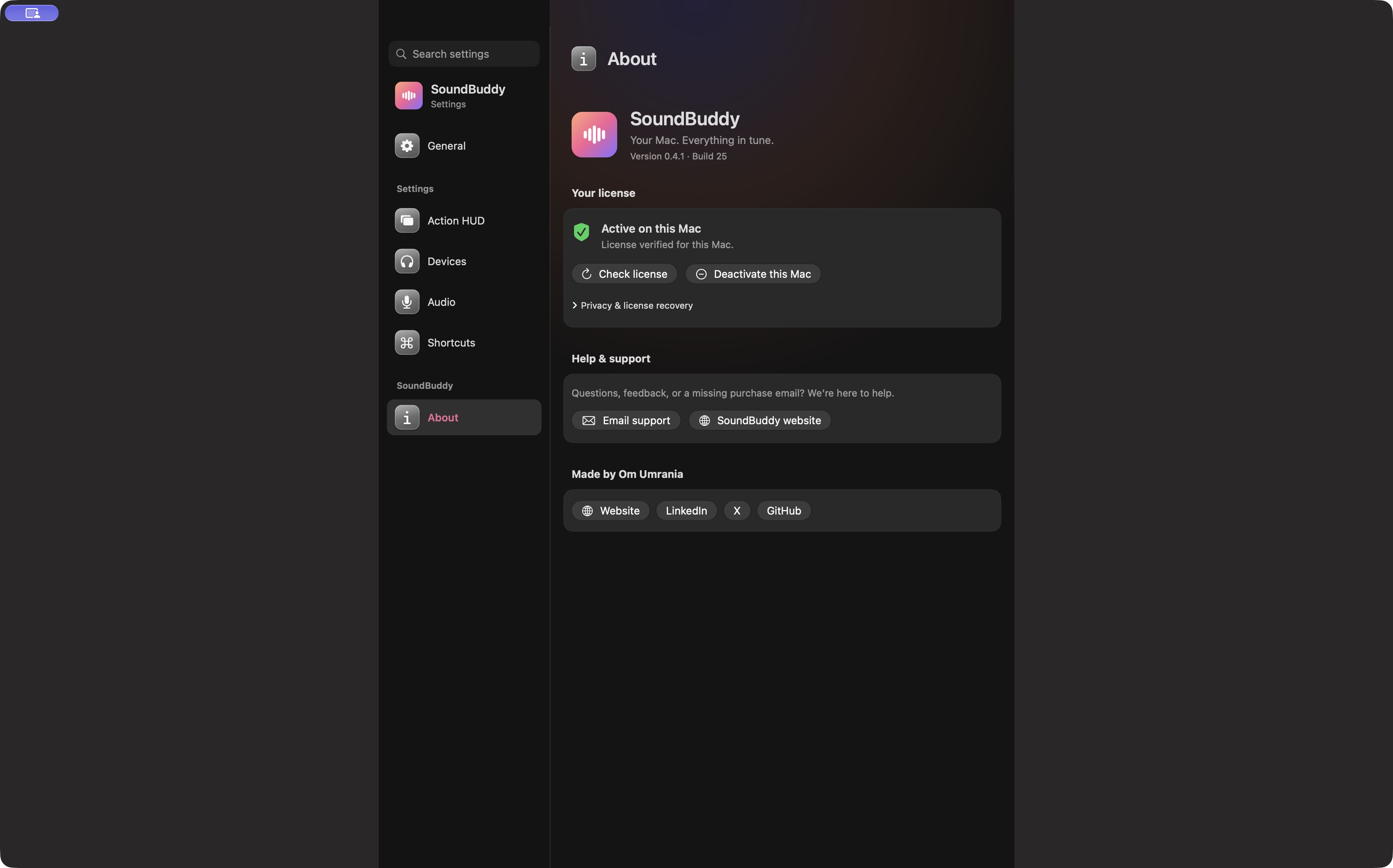
Open the full-size actual About capture
SoundBuddy is our product. Reading version information does not grant microphone or keyboard access, verify a purchase or prove successful audio behaviour. The Mac fit-check guide addresses platform and workflow requirements separately.
This is documentation and released-source research. No update or duplicate-copy experiment was performed, and no reduction in support time or improvement in productivity was measured.
Next step: record About first, then a specific Finder file if relevant. Keep those observations separate from the installer you downloaded.