A Voice Memo sounds different? Inspect playback options before judging the microphone

If an existing Voice Memo sounds different from what you remember, inspect the playback options before changing the microphone used for your next recording. Listening adjustments and the source captured earlier are different parts of the workflow.
Start with the same saved recording and a named passage. Keep the output and listening level stable if you choose to compare settings. A different impression after changing several controls does not isolate a cause.
Identify the selected recording's playback options
Apple's Voice Memos playback guide for Tahoe documents playback speed, Skip Silence and Enhance Recording. It describes enhancement as reducing background noise and reverberation. Some controls appear only for particular recording types; Studio Voice has separate Spatial Audio and Mac requirements. Playback options can also persist across supported devices using the same Apple Account.
Inspect the available controls for the selected recording and your installed version. A missing type-specific option is not proof of a broken microphone. A selected enhancement is also not evidence that every unwanted sound has been removed.
Compare one listening choice at a time
For a recording you own and intend to inspect:
- Note the recording, passage, playback speed and any enabled listening options.
- Preserve the recording before making other edits or a handoff.
- If you want a comparison, change one relevant playback option and listen to the same passage.
- Record your preference and any remaining problem without calling it a measured repair.
- Check a separately shared or exported copy on its own rather than assuming how app-specific playback options transfer.
The guide's Reset control restores playback defaults; it is a broader choice than comparing one toggle. Keep your starting settings if you want to restore your preferred listening arrangement.
If a newly captured voice is clipped, missing or supplied by the wrong input, document that capture question separately. Playback preference does not establish which microphone recorded an earlier file.
SoundBuddy input state is not recorded-file processing
Open the full-size actual microphone-settings capture
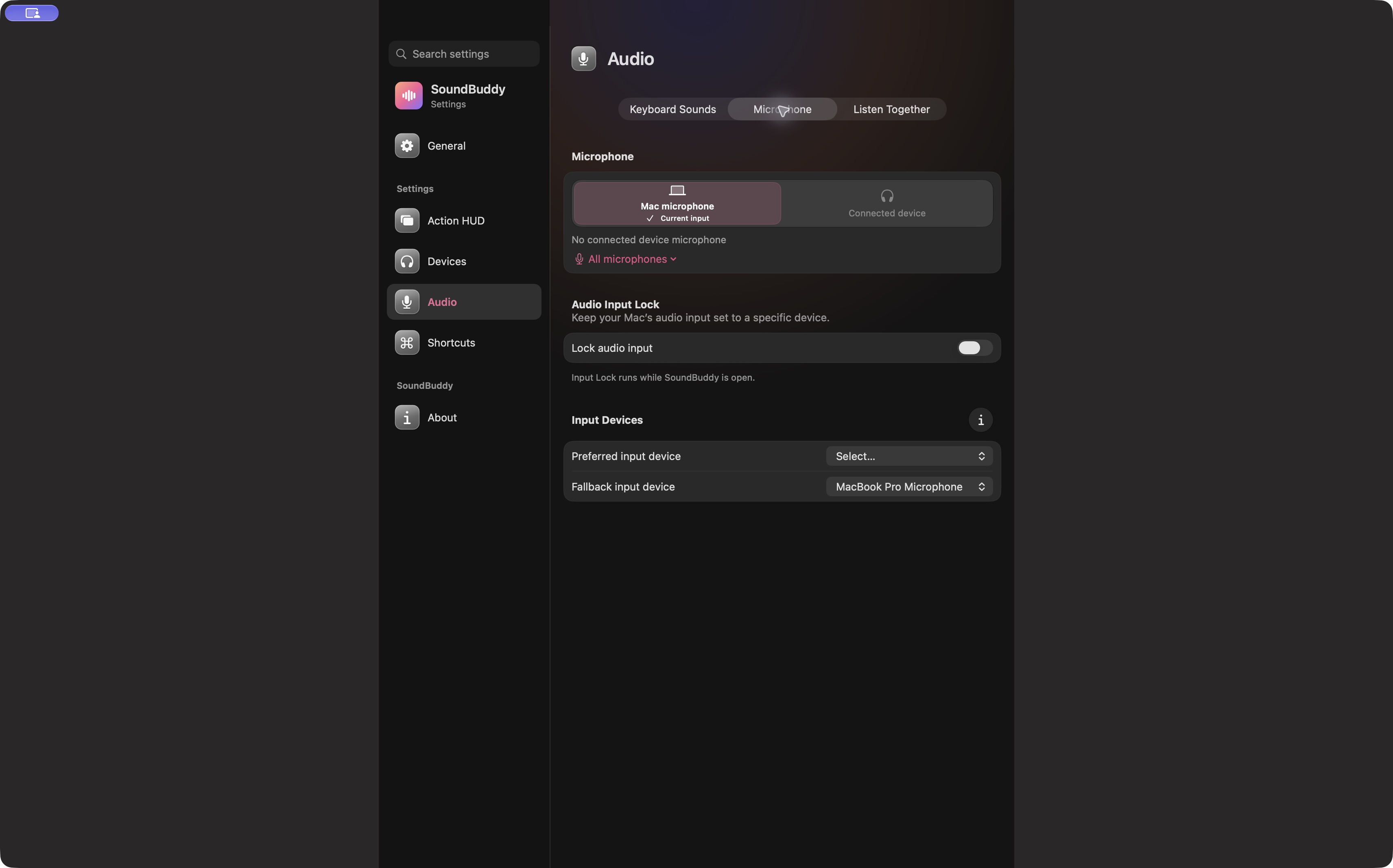
SoundBuddy is our product. Its input preferences do not establish recorded-file enhancement, noise removal, speech restoration or control over Voice Memos playback options. For live microphone processing versus device choice, use the separate Voice Isolation guide.
No recording, playback, account, enhancement or native setting was operated for this article. No quality or productivity result was measured.
Next step: inspect the existing recording's playback choices before changing the next capture's microphone.