VoiceOver audio is on another device? Inspect its output choice separately
If VoiceOver audio is not coming from the destination you expected, inspect the output choice before changing a microphone. Output answers where you hear something. Input answers what an app can receive. Those are separate parts of an audio setup.
For someone who uses VoiceOver to navigate, keep the familiar working route available while inspecting preferences. This guide does not require turning VoiceOver on if you do not already use it or resetting an established accessibility setup.
Inspect the VoiceOver-owned output choice
Apple's VoiceOver Sound reference includes an Output Device choice for VoiceOver sound effects and audio. It separately describes Mute sound effects, which does not mute VoiceOver speech or other apps. Positional audio uses stereo cues. Follow the reference for your installed macOS version if labels differ.
An output-device preference is not the same setting as a microphone input. A change in another player's destination also needs its own observation; it does not document what the VoiceOver preference currently says.
Make a destination note first
Using your usual accessible workflow, record:
- The device from which VoiceOver audio is currently audible.
- The selected Output Device in VoiceOver Utility's Sound category.
- The Mac's listening output and any app-specific choice relevant to your task.
- The destination you intend to use and the familiar route you can restore.
If you choose to compare destinations, change one output preference during a non-critical task and confirm that the navigation audio remains available. Do not compensate for uncertainty with a large volume increase or reset all VoiceOver settings.
If music merely becomes quieter during speech, that is a different observation. The audio-ducking guide addresses speech priority rather than destination selection.
What SoundBuddy's microphone screen can tell you
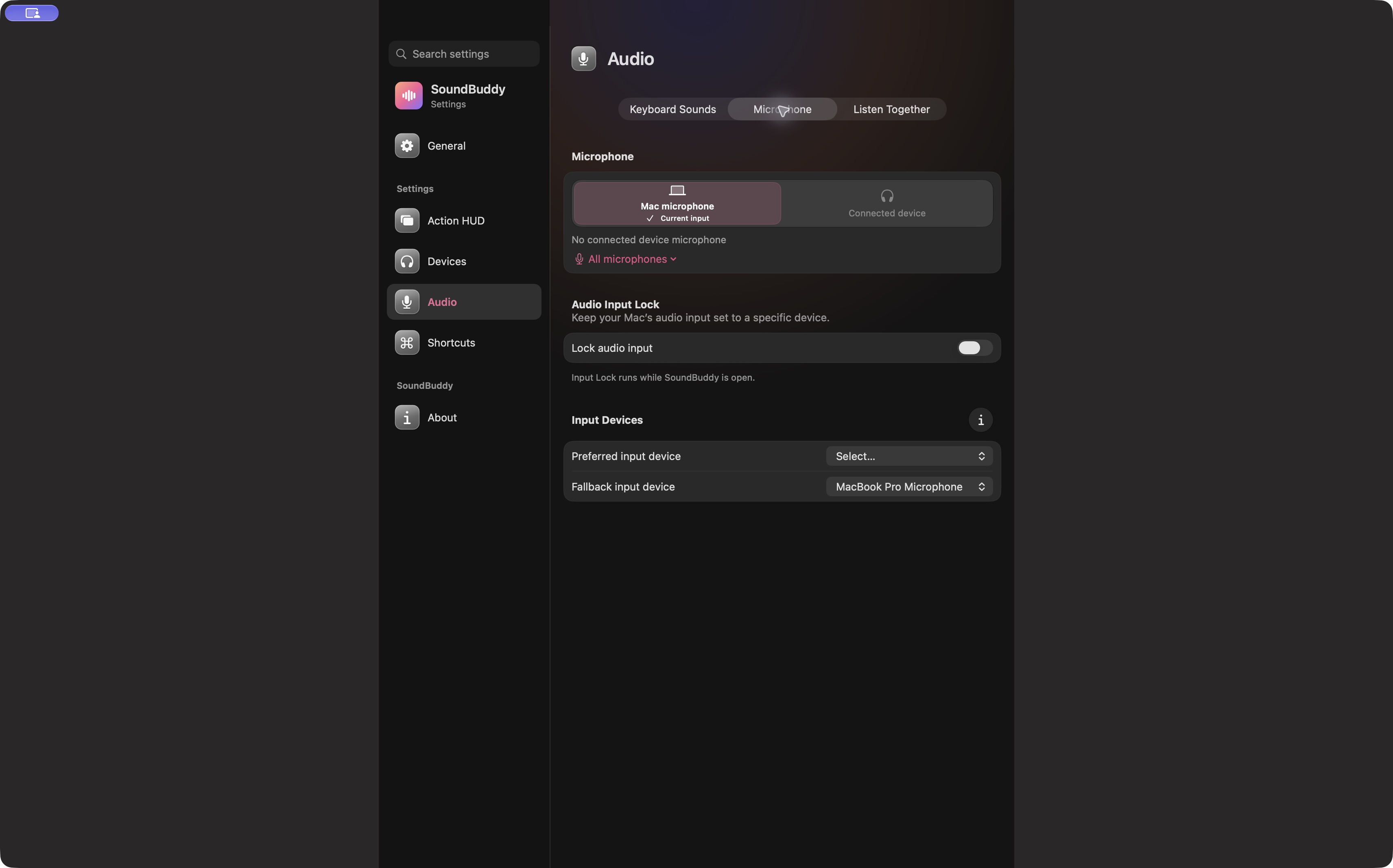
Open the full-size actual microphone-settings capture
SoundBuddy is our product. Its input view documents a different direction of audio. This image does not prove that SoundBuddy routes VoiceOver speech, replaces a screen reader or changes its positional cues.
No VoiceOver, accessibility, volume, device or native setting was operated for this article. No accessibility improvement or productivity result was measured.
Next step: record the VoiceOver output choice separately from the microphone, preserving a familiar navigation route while inspecting it.