Split Stereo Track and Split Stereo to Mono are different edits in Audacity

Before separating a stereo recording into tracks, decide whether you want to preserve left and right placement or treat the two channels as separate centred sources. Audacity documents different commands for those intentions.
A track appearing on one side after a split is not automatically evidence that a headphone is broken. First record which editing command you used and what each source channel contained before the edit.
Know which split you are choosing
Audacity's stereo-splitting manual says Split Stereo Track creates separate left and right tracks while retaining hard-left and hard-right panning. Split Stereo to Mono instead creates two centre-panned mono tracks. The manual is versioned software guidance; inspect the equivalent menu in your installed release.
Those commands change how the existing channels are represented and played. They do not prove that both original channels contain the wanted sound or reconstruct audio that was never captured.
Work from a preserved source
For your own recording, keep the original project or a separate copy before editing. Then:
- Identify whether the source is a stereo recording and what belongs in each channel.
- State your intended result: separate left/right editing or two centred sources.
- Inspect the specific split command before applying it to a copy.
- Compare the track labels and pan controls with your intended result.
- Listen to the result and check the exported listening file separately if you create one.
If a source channel is empty, document that as a capture question. Changing a pan control is different from recovering missing content. Avoid deleting a channel or combining tracks until you know whether it contains useful material.
Keep output feedback separate from editing
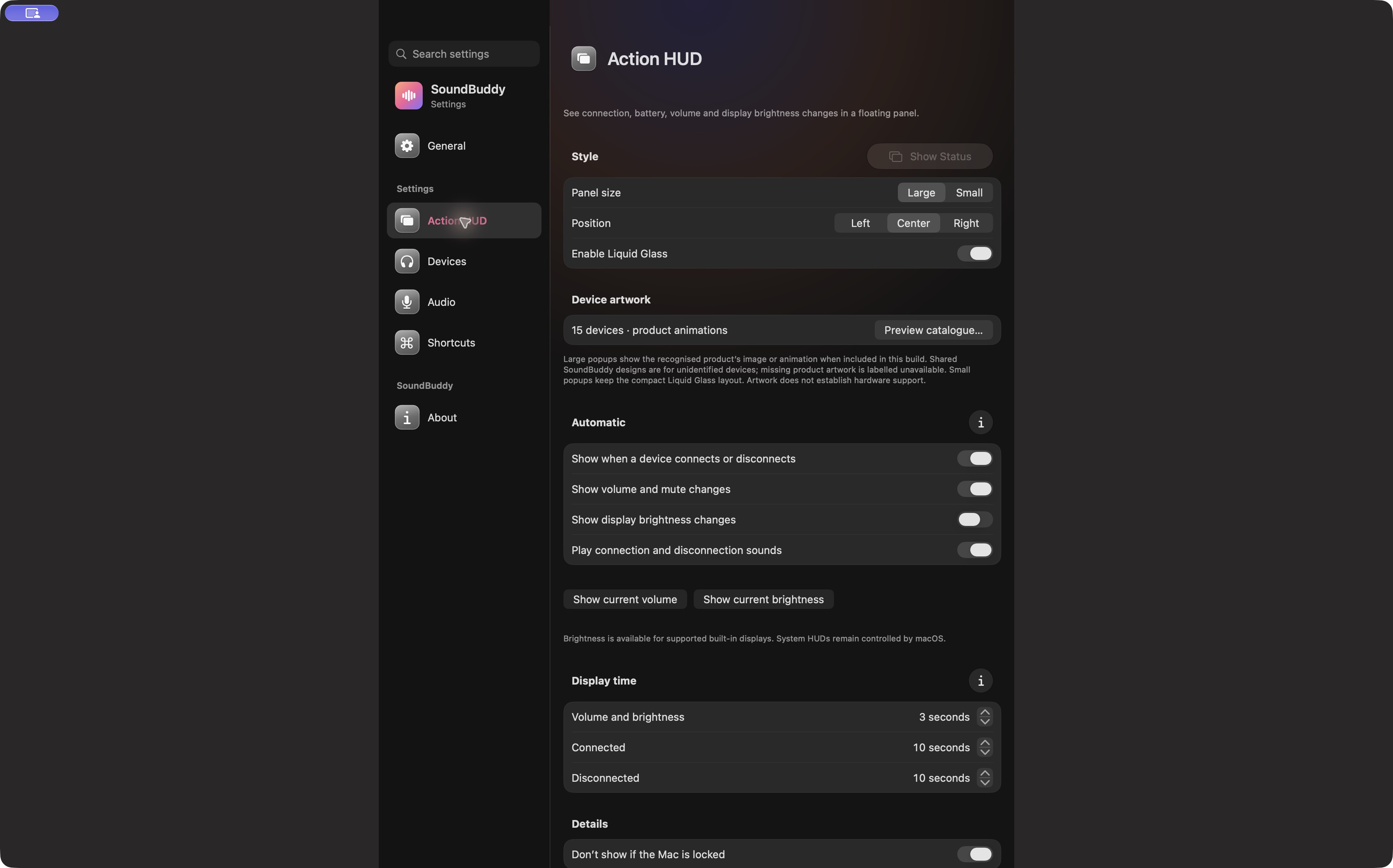
Open the full-size actual app capture
SoundBuddy is our product. Its status feedback does not establish channel editing, mixing, missing-channel repair or a correct export. The editor owns the track operations discussed here.
If ordinary playback is unexpectedly one-sided before any edit, use the Mac balance guide. If a mono recording meter worries you, use the mono-meter guide instead of treating it as this stereo-editing task.
No recording, project, channel, pan or device operation was performed for this article. No repaired-audio or productivity result is claimed.
Next step: name the intended channel placement before choosing a split command, then compare on a preserved copy.