Choose between a slide audio clip and a narrated Keynote presentation
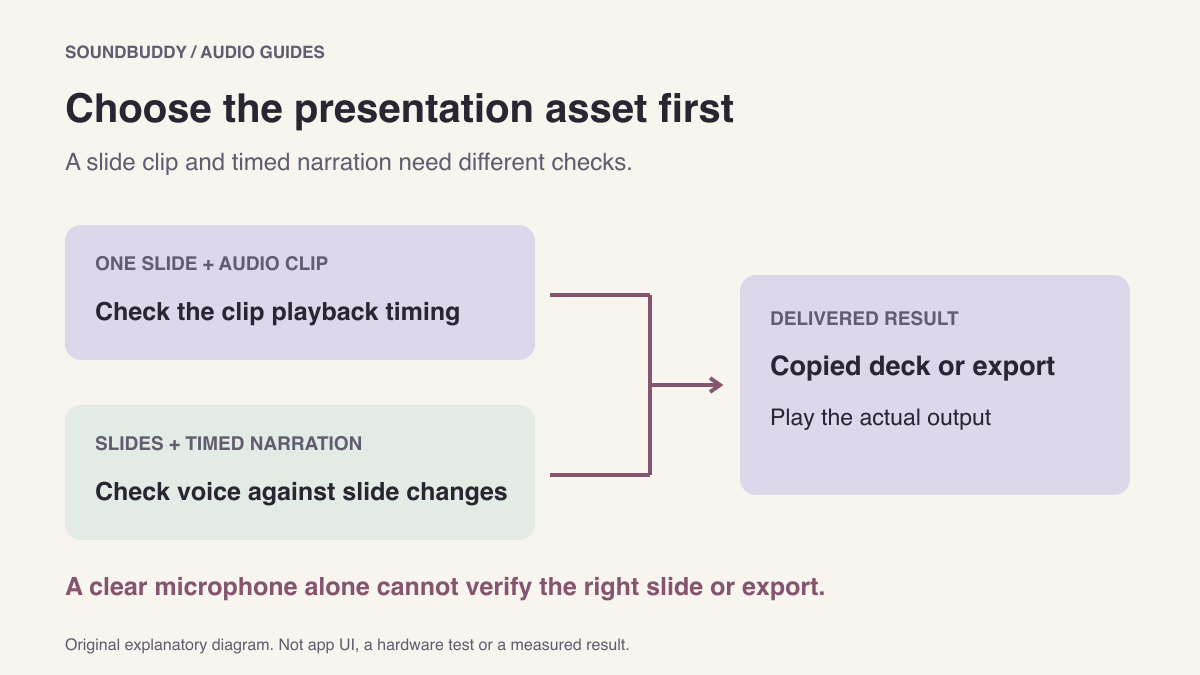
In Keynote, a sound attached to a slide and a recorded presentation are different assets. Choose the result you need before recording: one explanation on a slide, or a timed narration that follows your slide changes.
This choice matters when preparing a class presentation, product walkthrough or handoff. A clear microphone recording is only one part of the result. The listener also needs the right slide, timing and playable file.
Name the deliverable first
| What the viewer needs | Workflow to inspect |
|---|---|
| A short explanation associated with one slide | Record Audio and insert the clip |
| Narration following slides and builds | Record the presentation with voiceover |
| An existing music or speech file | Add the existing audio to the presentation |
| A file someone can play outside Keynote | Review export requirements and test the exported result |
Apple's Keynote audio guide documents recording a clip and inserting it. A slide audio object is visible during editing but not during presentation. Its position in the editing canvas is therefore not a complete description of when the audience hears it.
Apple's recorded-presentation guide describes narration with slide timing and later playback or video export. The interface can differ by Keynote version, so use the guide corresponding to the app installed on your Mac.
Rehearse with two ordinary slides
Make a copy of the presentation or use a small practice deck. Avoid private slide content and other people's speech. Confirm the intended microphone before recording a harmless sentence.
For a slide clip, record a brief explanation, preview it and insert it where intended. Then play the slide as the audience will see it. Check when the clip begins and what happens when you advance.
For a narrated presentation, record two slides and one build. Speak at your normal pace and advance at the moment you want preserved. Play the recording from the beginning and check the slide transition against the voice. A microphone meter cannot tell you whether the timing makes sense.
Do the small rehearsal before recording a long deck. If the wrong kind of asset was created, it is easier to correct the workflow with two slides than after a full take.
Check embedded media and delivery separately
Apple's media guide discusses including audio and movies in the document when moving it to another computer. That is worth checking before handing off a deck with media. It is a different question from whether a video export contains the intended narration.
Test the file you will actually deliver. Open the copied deck or exported video, start at the beginning and check a later transition as well. Do not infer successful delivery from hearing the original clip inside the editor. If a recipient requires a particular format, confirm that requirement before deciding the workflow.
Keep microphone and narration ownership clear
A recording made with the wrong input is a capture problem. A voice that is clear but arrives beside the wrong slide is a timing problem. A file that works only on your Mac is a delivery question. Record the actual observation before changing several settings.
Our pre-call microphone check offers a selection checklist you can adapt before recording. The screen-recording audio-path guide is relevant if you choose a separate capture app and need to identify its included sources.
The illustration shows workflow choices, not tested Keynote controls. Keep the slide audio object, the recorded slideshow and the exported deliverable clearly named so you can identify which one you checked.
Next step: name the intended deliverable and make a two-slide rehearsal. Review its timing and actual output before recording the full presentation.