Before handing over a Mac voice note, check QuickTime quality and the saved file

A microphone label is not a finished voice note. Before handing over a recording, separate the chosen input, recording format, saved file and what you actually hear on playback.
For a quick spoken explanation, the useful starting question is what the recipient needs. An uncompressed source and a convenient listening copy may serve different purposes. Avoid assuming that a setting named Maximum is automatically the right deliverable for every task.
Choose the recording format deliberately
Apple's QuickTime audio-recording guide for Tahoe documents File, New Audio Recording, followed by microphone and quality choices. High uses AAC; Maximum uses uncompressed Linear PCM and can consume substantial storage. The monitoring volume lets you hear the input. Recording, stopping and saving with a name and location are separate steps.
The quality choice does not establish that the intended microphone supplied the recording or that a quiet room was captured. Choose according to the task and the recipient's accepted formats. Keep the source file if later editing or conversion may be needed.
Check a short non-sensitive sample first
If you choose to test the workflow yourself:
- Name the intended microphone and inspect QuickTime's selected input.
- Select the format appropriate to your task, noting the storage trade-off.
- Record a short sentence you are comfortable retaining, then stop and save it deliberately.
- Reopen the saved file and listen through the intended output. Check the beginning, ending and whether the expected voice is present.
- Record the filename and location before a handoff. Share only when you intend to, with the appropriate recipient and permission.
Hearing live monitoring is not proof of what was saved. A file existing on disk is not proof that someone else received it. Keep those states separate when describing a problem.
What the actual SoundBuddy view shows
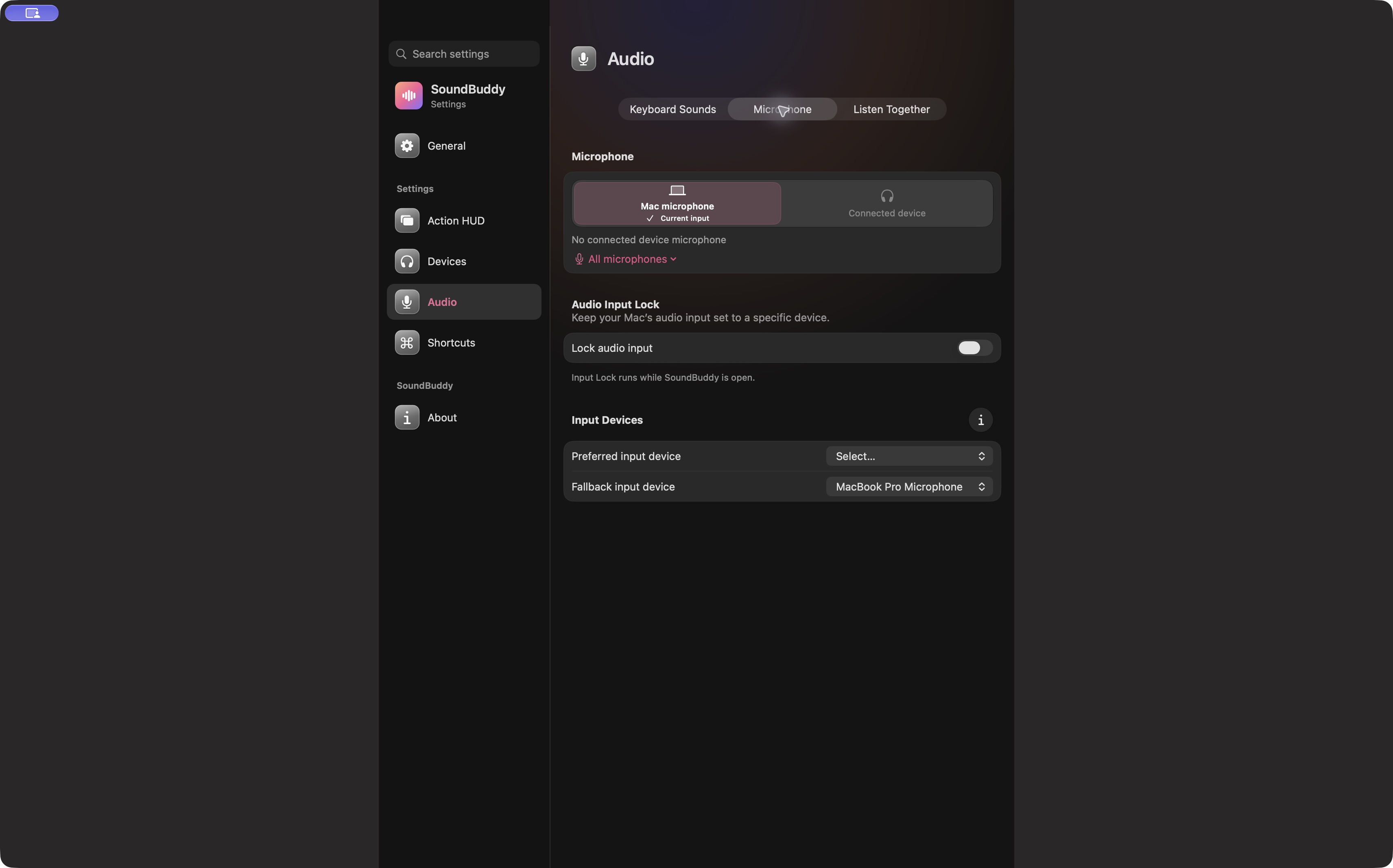
Open the full-size actual microphone-settings capture
SoundBuddy is our product. Its input-selection view can be part of describing the Mac's state, but recording-app choices and saved-file verification remain separate. This image does not demonstrate audio recording, export, noise repair or delivery features.
For a quiet captured voice, use the input-versus-output-level guide. For permission and activity indicators, use the microphone evidence guide.
No recording, native app, microphone, file handoff or setting was operated for this article. It is documentation-based guidance, with no measured quality or time-saving result.
Next step: verify one saved non-sensitive sample before relying on an input label or live monitoring alone.