Trim a Mac Voice Memo without losing the passage you wanted
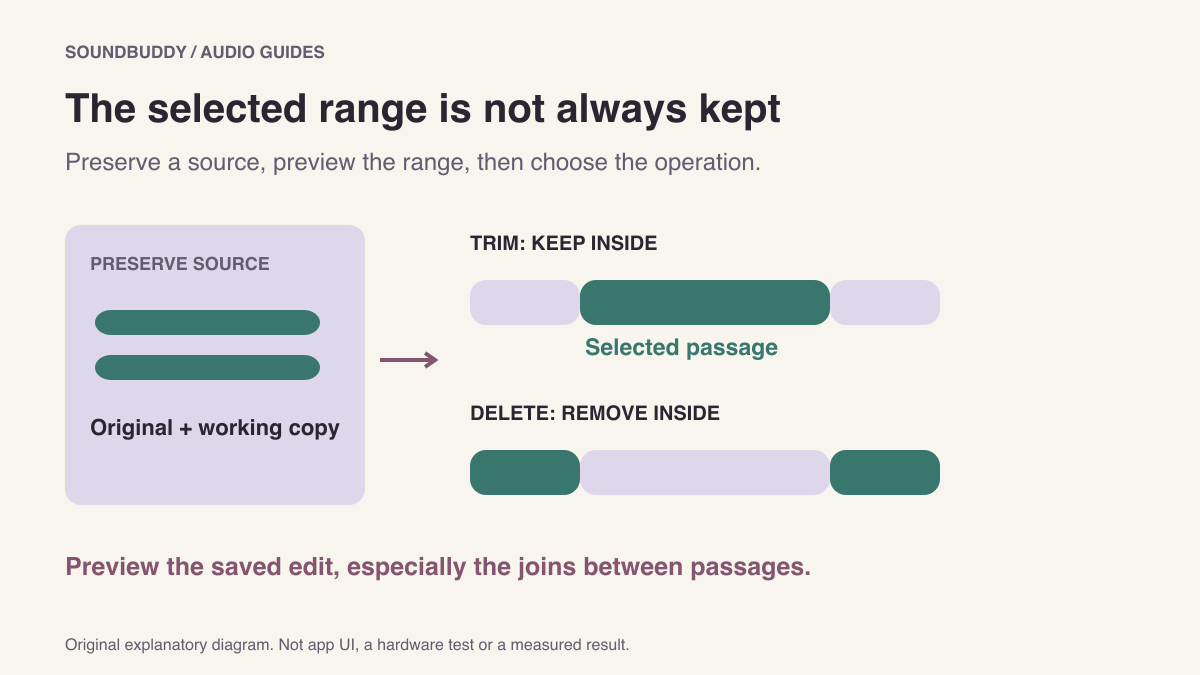
In Voice Memos, trimming to a selected range and deleting that range keep different parts of a recording. Before applying either operation, preserve the original and preview what the handles enclose.
This matters when a voice note contains a useful explanation surrounded by a false start or a long pause. The goal is a shorter copy with the intended words intact, not simply a waveform that looks tidier.
Decide which part should remain
Apple's Mac editing guide distinguishes Trim, which removes material outside the handles, from Delete, which removes the material between them. It also documents duplicating a recording and saving an edit as a new recording. Follow the guide version matching your Mac.
| Intended result | Range to inspect | Decision |
|---|---|---|
| Keep one continuous passage | The words you want inside the handles | Trim the outside material |
| Remove an unwanted middle section | The unwanted section inside the handles | Delete that selected material |
| Keep an untouched source | The original in the library | Duplicate first or save the edit as new |
The diagram highlights a selected range conceptually. It is not an app screenshot or a waveform from an actual recording.
Make the first edit reversible
Choose a recording you own and may edit. Give the original a recognisable name. Use File > Duplicate if you want a separate working copy before editing. Make sure the copy, not the original, is selected.
Open the editing and trim controls, then place the handles around a short intended passage. Preview before applying the operation. Listen to the beginning and end of the selection, not just the middle: a boundary in the middle of a word may look plausible at a small zoom level.
Apply the operation that matches your intention. If offered a choice between saving the recording and saving as a new recording, read it carefully. Apple's guide says saving the recording overwrites the original with changes. Do not rely on a playback preference as a substitute for preserving the source.
Check continuity after removing a middle section
An edit can preserve every individual word you wanted while changing the meaning of the passage. Listen across the join. Check that a missing pause, qualification or speaker transition has not made the statement misleading.
For your own planning note, a shorter reminder may be enough. For material you intend to quote or share, retain context and an accessible original. A technically successful cut does not establish that the edit represents the speaker fairly.
If the real goal is to listen faster without editing the content, see the Voice Memos playback guide. A listening option and a saved edit answer different questions.
Verify the copy you will share
Apple's sharing guide documents using Share or dragging a recording to Finder. Use a clearly named edited copy, then play that exported file before sending it. Check that it contains the right beginning, ending and middle join.
Keep the original until you know the edit meets your needs. A shared copy should contain only the speech you intend to disclose. Listen for unrelated personal details or other people's voices, rather than assuming trimming the ends removed them.
If the words were missing from the original capture, trimming cannot restore them. Before recording another take, use the microphone check.
Next step: duplicate one recording, make one small edit and compare the saved copy with the source before working on important material.