Music stalls on your Mac? Check a downloaded track before changing headphones
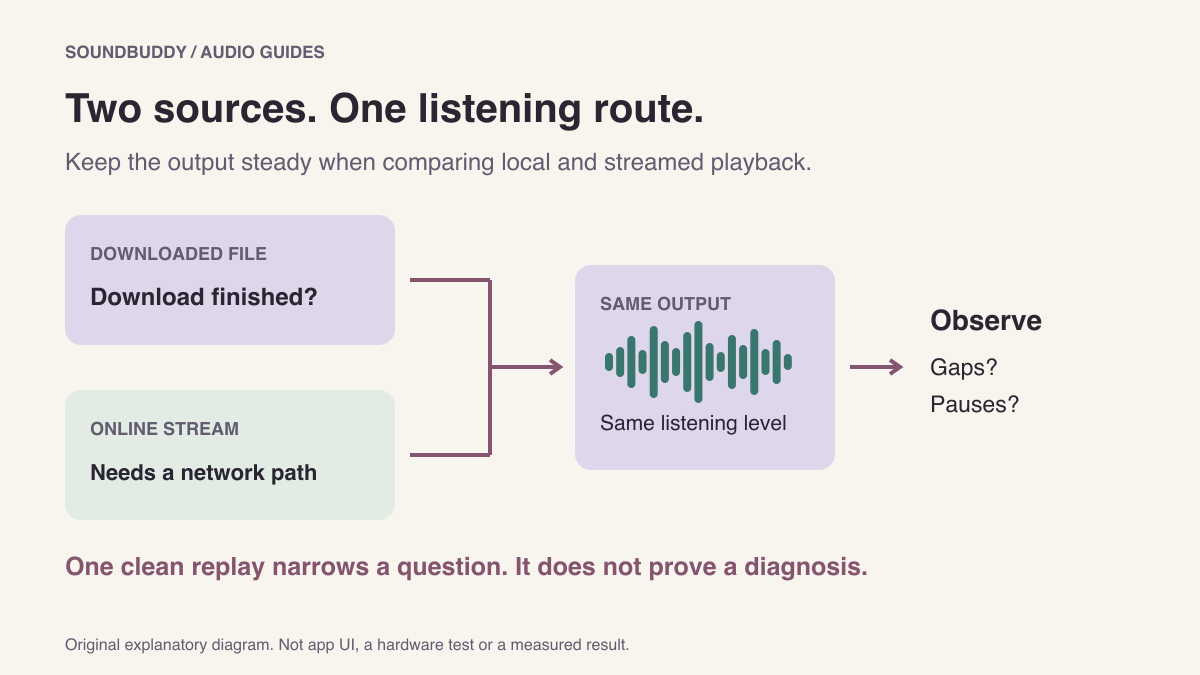
A streaming interruption and a headphone interruption can sound alike. A downloaded track gives you a useful comparison: can the Mac play audio it already has, through the same output, while online playback is unreliable?
This comparison narrows the next question. It cannot prove that the network or headphones are healthy. Use it before resetting Bluetooth, changing a router or removing your music library.
Added to Library is different from downloaded
Apple's Mac Music guide treats adding music and downloading it as separate actions. For eligible Apple Music content, add the item to your library, then use its Download option. Wait for the transfer to finish before calling the track available offline. Subscription, account and regional availability can affect the options you see.
Do this while you still have a working connection. A title visible in a playlist is not enough evidence that its audio is stored locally. Record the track you checked and the download state you observed.
The illustration shows two potential sources feeding one listening route. It does not depict Music's interface or establish that a particular download succeeded.
Set up one useful comparison
Choose a short track you have permission to play and know is downloaded. Keep the same Mac, output, listening position and comfortable volume. Avoid making the comparison during a call, screen share, backup or other task that needs connectivity.
- Note the problem: does playback pause, does the time counter continue silently, or do you hear short gaps?
- Play the downloaded track through the affected headphones. Record the result and whether a microphone is in use.
- Compare a streaming track through the same output when the connection is available. Describe the behaviour, rather than only writing “bad audio.”
- If you need to confirm offline availability, do so at a suitable time. Remember that turning Wi-Fi off does not remove Ethernet or every other network connection. Do not interrupt work merely to make this test stricter.
This is a troubleshooting exercise, not a controlled measurement. Different tracks and changing network conditions limit what you can conclude.
Read the result without overclaiming
| Observation | Next useful question |
|---|---|
| Downloaded playback is clean, streaming stalls | Is the item, account, service or network path involved? |
| Both have short gaps through the same headphones | Does the problem follow the listening route or desk position? |
| Both are silent while their counters move | Which app and Mac outputs are selected? |
| The change starts when a headset microphone opens | Is a Bluetooth listening-mode change involved? |
For the second row, Apple's interference article describes several possible contributors to skipping Bluetooth audio. Our desk-layout guide offers a limited physical comparison. Clean local playback once does not rule out intermittent interference later.
For the final row, Apple's headset microphone explanation describes reduced listening quality during microphone use. Follow the microphone selection guide instead of treating download quality as the same issue.
Preserve the useful evidence
A useful report says: “This downloaded track played cleanly through this output at this time; this streamed item paused after this action.” Include the macOS and Music versions, the output model and the exact symptom. Leave account identifiers and private listening history out of public screenshots.
Do not delete and rebuild a library to perform this comparison. If a downloaded item itself fails, keep the exact error and check the account and content requirements before attributing the failure to wireless hardware.
SoundBuddy can make microphone and paired-device choices easier to inspect. It does not manage Music downloads, repair an internet connection or guarantee uninterrupted playback. If music continues beyond your intended stopping point, the queue, Repeat and AutoPlay guide addresses that separate question.