Your Mac microphone is selected, but your voice still sounds distant
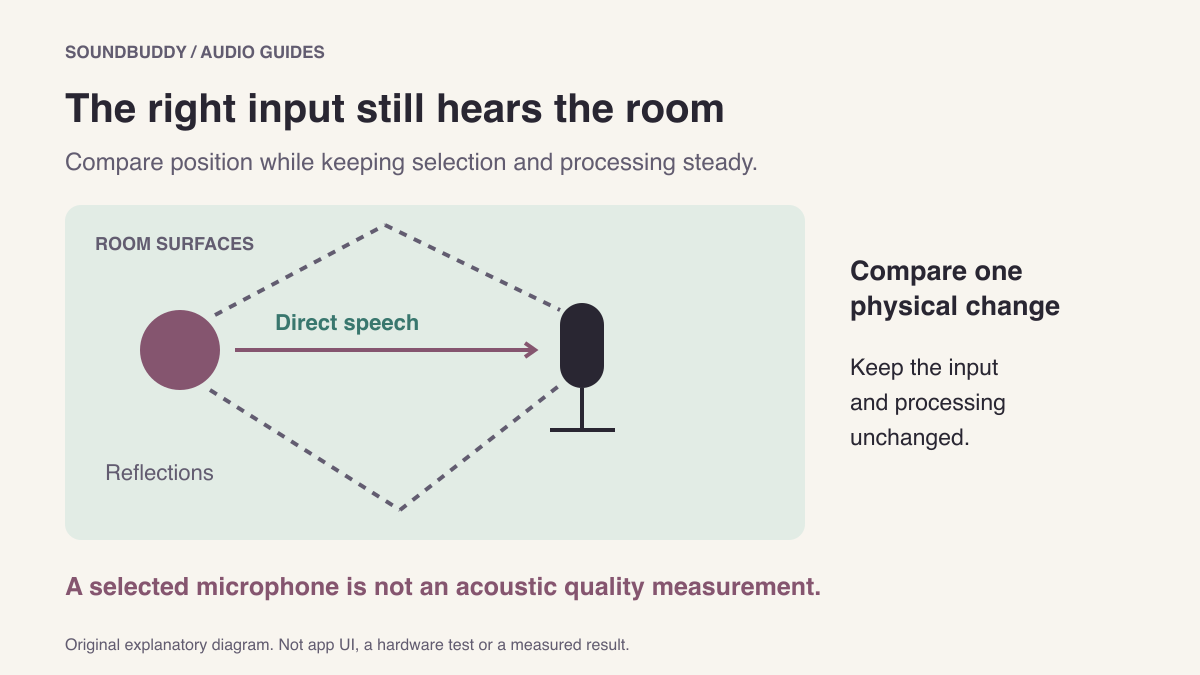
Selecting the intended microphone solves a routing question. It does not tell you how much of your voice, the room and nearby noise that microphone receives. If other people describe your voice as distant or roomy, inspect the physical setup before adding more software.
First confirm that the call or recording app uses the input you intended. Then compare one position with a short, ordinary spoken phrase. Keep microphone selection, processing and listening level steady during that comparison.
Separate room sound from meeting echo
A room can make a single person's voice sound reflective. A meeting can also return a delayed copy through another participant's speakers or a second audio connection. These are different problems, even if both get called “echo.”
| What you hear | A useful first question |
|---|---|
| Voice sounds far away in a local recording | Which microphone is active, and where is it relative to the speaker? |
| A delayed copy occurs only in a meeting | Is there another connected audio session or open speaker? |
| Loud syllables sound crunchy | Is the input overloading? |
| Voice becomes faint only after processing | Which app processing option changed? |
Use the duplicate meeting-audio guide for a delayed return. Use the clipping guide for overload. Neither symptom is diagnosed by a connection label.
Why placement deserves a check
Shure's technical explanation of critical distance describes the balance between direct speech and room reflections. It also explains why background noise is a separate concern. A microphone cannot make an acoustically poor room disappear simply because the computer recognises it.
The practical implication is to inspect the actual microphone position, not calculate a universal distance from a blog. Built-in laptop microphones, headset booms and desktop microphones have different placement constraints. Follow the instructions for the exact device you already use.
For example, Sennheiser's Profile setup advice discusses quiet surroundings, reflective surfaces, orientation and input level. Its distance recommendations apply to that microphone and use case. They are not a rule for every MacBook or headset.
Compare one physical arrangement
Choose a time outside a real call. Use your own harmless phrase and keep other people's conversations out of the recording.
- Note the active input in both the Mac and recording app. A docked display or headset may have added another microphone.
- Describe the starting position: where the microphone is, where you speak and whether a hard surface sits immediately nearby.
- Make a short baseline recording at your normal speaking level. Save it without replacing any important file.
- If the device's instructions allow it, compare one closer or better-oriented position. Keep the source and processing settings unchanged. Do not strain cables or move a live storage device.
- Listen to both files at the same comfortable playback level. Note intelligibility, room sound and any new popping or distortion separately.
If the closer position overloads, stop and treat gain as a new comparison. Changing distance and input level together may be useful for your eventual setup, but it no longer isolates the position change.
The illustration separates a direct path from reflections. It is conceptual, with no scale or acoustic measurements. No recording test was performed to create this article.
Check the call path after the local check
A clean local file is useful evidence about that capture. It does not certify what a meeting app sends after processing and network transmission. Use the app's own test, or an agreed practice conversation, to ask whether the final voice is intelligible. Keep that result separate from the local one.
For the routing checklist, read using a Mac microphone with Bluetooth headphones. For processing choices, see Voice Isolation versus microphone selection.
SoundBuddy helps manage microphone choice. It does not acoustically treat a room, remove every reflection or guarantee call quality. Next step: retain two short files and a description of the one physical change you compared. Use that evidence to decide whether placement is helping before buying equipment.